Image Formats Explained: JPG, PNG, WebP, AVIF

Most arguments about image formats are longer than they need to be. For the overwhelming majority of pictures on a website, one format is correct and the rest are compromises.
That said, the exceptions are real, and picking wrong costs you either file size or quality. Here is the short version first, then the reasoning.
The short answer
| What you have | Use | Why |
|---|---|---|
| A photo on a website | WebP | Roughly 25 to 35 percent smaller than JPEG at the same quality |
| A photo going to a client, a printer or email | JPEG | Opens everywhere, no questions asked |
| A logo, icon or screenshot with sharp edges | PNG | Keeps edges crisp, full alpha channel |
| A logo that can be drawn with shapes | SVG | Scales to any size without getting bigger |
| A product page or hero image where file size counts | AVIF | The smallest files available, with a fallback |
If you stop reading here you will still pick the right format most of the time. WebP for photos on the web, PNG for graphics, JPEG when compatibility matters more than size.
Lossy and lossless compression
Every format here uses one of two approaches, and knowing which is which explains most of the behaviour people find surprising.
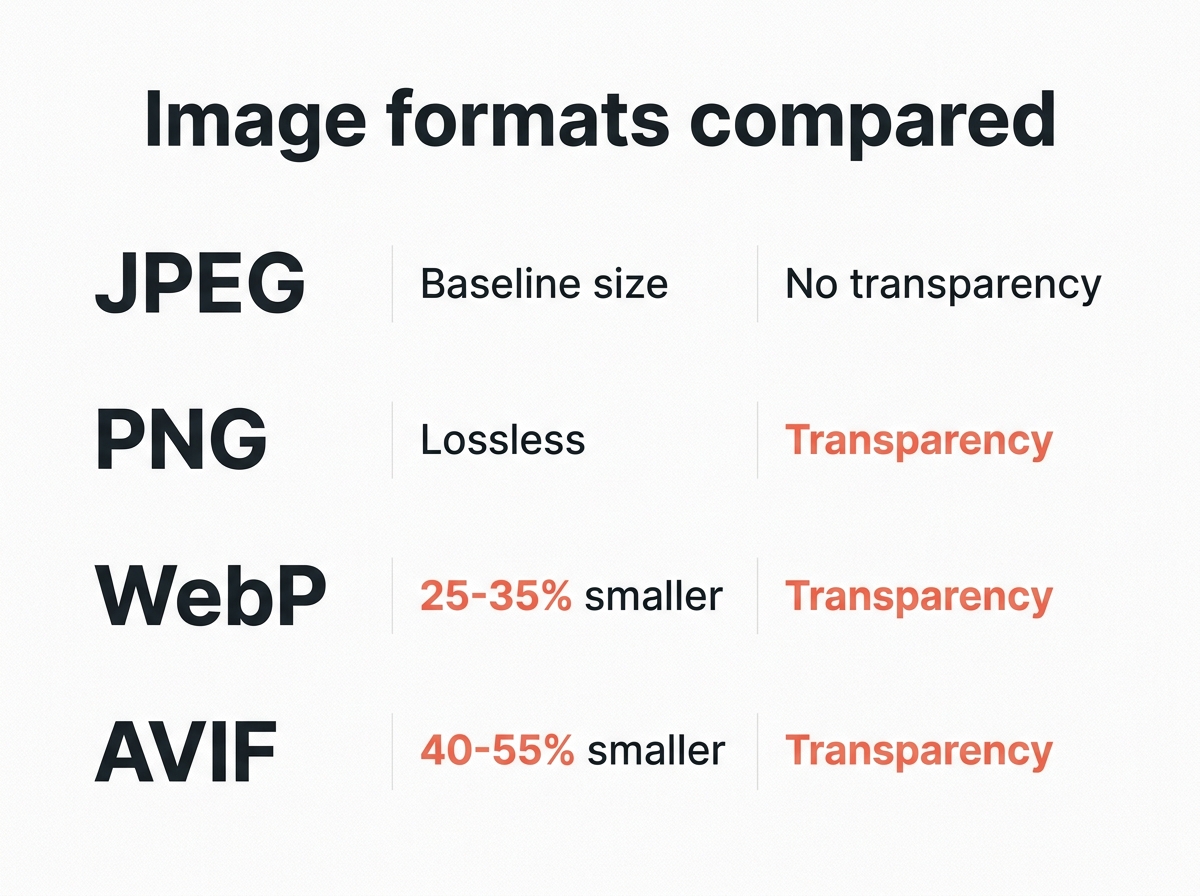
Lossy compression throws away information the eye is unlikely to miss. JPEG works this way, and so do WebP and AVIF in their default modes. You get much smaller files than the original, and the picture degrades a little every time you save it again.
Lossless compression keeps every pixel. PNG works this way, and WebP and AVIF both offer a lossless mode too. Nothing is discarded, so you can re-save as often as you like, but the files stay larger.
The practical rule: use lossy compression for photographs, where nobody can see the difference, and lossless for screenshots, logos and anything with text or sharp edges, where the difference is obvious. The fact that WebP supports both lossy and lossless compression is the main reason it replaced two older formats at once.
JPEG: the safe default that will not die
JPEG, often written as JPG, has been the standard for photographs since the early nineties and it is still the format every piece of software on earth can open. That is its entire remaining advantage, and it is not a small one.
The compression is lossy, which means the file throws away detail you are unlikely to notice. Push the quality slider too low and you get the familiar blocky artefacts around edges and in flat areas like skies.
What JPEG cannot do is transparency or animation. If any part of your image needs to be see-through, JPEG is out before the conversation starts.
Use it for photos that will be emailed, printed, or handed to someone whose software you cannot predict. MDN’s own image format guide still describes JPEG as the most popular choice for lossy still images, while pointing to WebP and AVIF when you want both better reproduction and smaller files.
PNG: for graphics, not photographs
PNG uses lossless compression. Every pixel you put in comes back out exactly as it was, which is why it is the best choice for screenshots, logos, diagrams and anything containing text. All the colour information survives intact.
But that same property makes it a poor fit for photographs. A PNG photo is typically two to five times larger than the equivalent JPEG, and nobody can see the difference. People who save holiday photos as PNG are paying a large file size penalty for quality they cannot perceive.
PNG also handles transparency properly, including soft edges and partial opacity, so a transparent logo stays transparent against any background. That is why it remains the format of choice for a logo that has to sit on different coloured backgrounds.
WebP: the sensible default for the web
WebP does both jobs. It has a lossy mode that beats JPEG and a lossless mode that beats PNG, and it supports transparency and animation in both.
The numbers are what make the case. Against JPEG and PNG at comparable quality, WebP produces smaller files than both. Compared with JPEG the saving is roughly 25 to 35 percent. In lossless mode the result is smaller than PNG as well, usually by 20 to 30 percent. WebP also keeps a full alpha channel, so transparency survives the conversion. On an image-heavy page that is the difference between a fast site and a slow one.
Browser support is no longer a reason to hesitate. Every current version of Chrome, Edge, Firefox, Opera and Safari displays WebP. The one caveat worth knowing is Safari on macOS, where support needs Safari 14 or later running on macOS Big Sur or newer. For anything but a deliberately ancient audience, that is a solved problem.
AVIF: the smallest files, with a catch
AVIF comes from the AV1 video codec, and it compresses harder than anything else in common use. It also handles a wide color gamut and high dynamic range, which matters for product photography and hero images where colour accuracy is part of the point. Expect files roughly 40 to 55 percent smaller than JPEG, and 15 to 25 percent smaller than WebP, at a quality most people cannot tell apart.
There are two catches. Encoding is noticeably slower, which matters if your site generates images on the fly rather than ahead of time. And browser support, while real, is younger: Chrome from version 85, Firefox from 93, Opera from 71, Safari from 16.1 and Edge from 121.
That support is good enough to use AVIF today, provided you serve a fallback. The picture element with nested sources lets a browser pick AVIF if it can and quietly fall back to WebP or JPEG if it cannot. That is the same technique MDN recommends for any newer format.
What about GIF and SVG?
GIF survives on momentum. It is limited to 256 colours, produces larger files than the alternatives and looks worse doing it. For animation, WebP and AVIF both beat it comfortably. Keep GIF for compatibility with something old, and nothing else.
SVG is a different animal. It stores shapes and instructions rather than pixels, so it scales from a favicon to a billboard without getting blurry or larger. Use it for logos, icons and diagrams that were drawn rather than photographed. It cannot represent a photograph in any sensible way.
When to use which quality setting
Quality numbers do not transfer between formats, and this trips up almost everyone converting images in bulk. A JPEG at quality 85 and a WebP at quality 85 are not the same thing. The number means something different in each encoder.
In practice, WebP at a given quality setting looks better than JPEG at the same number, which means you can usually drop the setting and still come out ahead. Convert one representative image, look at it properly at full size, then apply that setting to the rest.
Dimensions matter at least as much as format. A 4000 pixel wide photo displayed in a 800 pixel column wastes most of its file size no matter how good the encoder is.
Converting without wrecking the quality
Three steps cover most of the work, and all of them run in your browser rather than on a server.
- Change format with our image converter. It handles WebP, JPEG, PNG and AVIF, and tells you if your browser cannot write AVIF.
- Squeeze the result with the image compressor if the file is still larger than you want.
- Scale the picture to the size it will actually be displayed at with the image resizer before you do either.
Do them in that order and the saving compounds. Resizing first means the encoder has less to work with, which is exactly what you want.
Quick answers
Which image format is the best choice for the web?
WebP for photographs, PNG for graphics with sharp edges, SVG for logos. AVIF when you want the smallest possible files and can serve a fallback.
Is WebP better than JPEG?
For the web, yes. Smaller files at the same visible quality, plus transparency and animation support. JPEG only wins on universal compatibility outside the browser.
Does converting to WebP lose quality?
In lossy mode, yes, in the same way JPEG does. In lossless mode, no. Converting an existing JPEG to WebP also means the image is compressed twice, so work from the original where you can.
Which format supports transparency?
PNG, WebP, AVIF, GIF and SVG can all store transparent pixels. JPEG and JPG cannot, and no setting changes that.
Which format is best for a logo?
SVG if you have the vector file. PNG if you only have a bitmap, since it is smaller than PNG alternatives like BMP and keeps the alpha channel. Never JPEG, because the edges will blur and the colour fringing around text is hard to miss.
The rule worth remembering
Use WebP unless you have a reason not to. The reasons are short and specific: the file is leaving the web for print or email, so use JPEG. The image is a drawn logo, so use SVG. You need the smallest file on a site you control end to end, so use AVIF with a fallback.
Everything else is detail you can look up when a particular image misbehaves.