Forms, portals and upload fields often want an image below a specific number of kilobytes. This free online tool takes that limit as the input: type 100KB, 200KB, 500KB or any value, click, and the size reducer finds the highest compression level that fits. The size reduction runs in your browser, so nothing is uploaded.
How to reduce the image size
- Drop your images into the box above, up to 20 at once.
- Enter the target size in KB, or click a preset button: 100KB, 200KB, 500KB or 1 MB.
- Set the longest side. 1920 pixels is the default. Choose 800 for passport-style photos, or No limit to keep the original pixel size.
- Pick JPG or WebP as the output.
- Click the download button for each file, or save the whole batch as a ZIP.
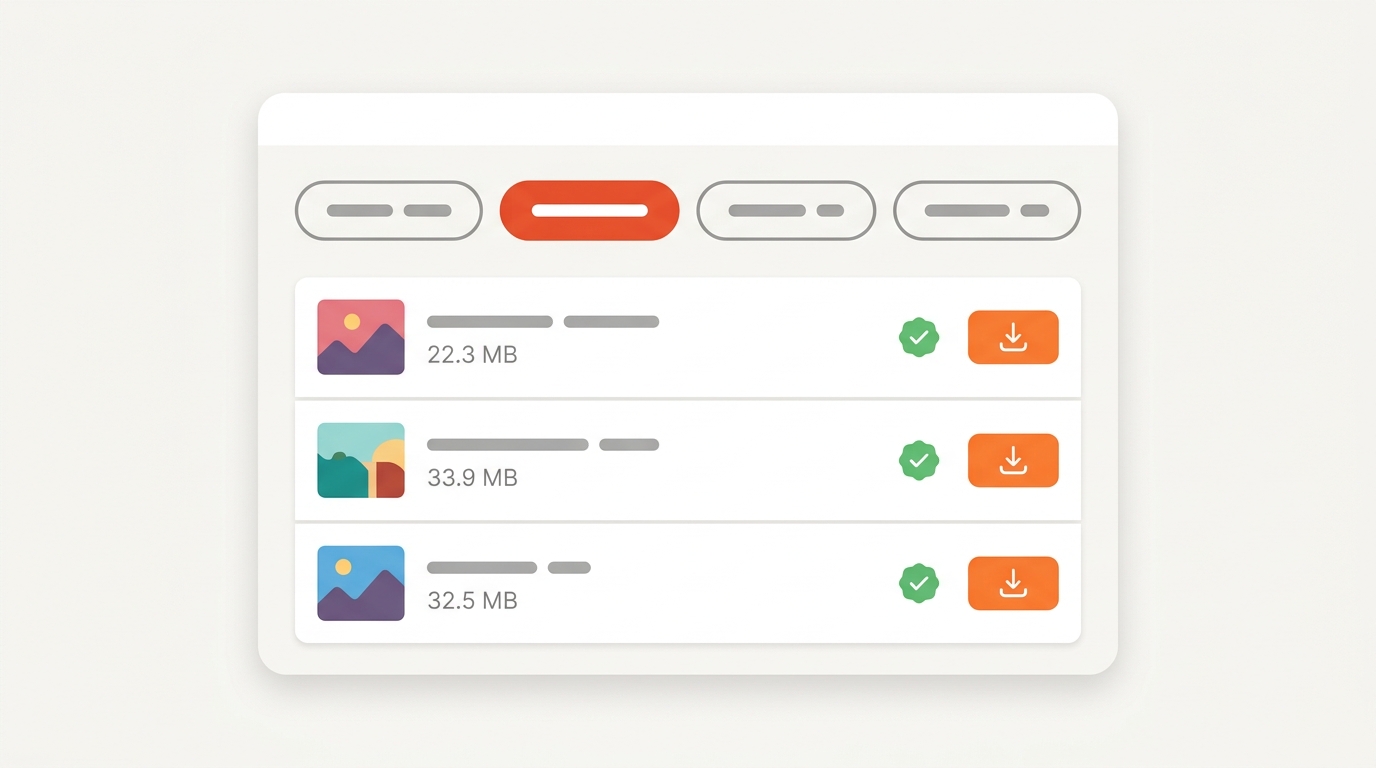
Every result shows a preview with the new size, the pixel size and the compression level the tool landed on. A green badge means the image is below your limit.
How the size reducer works
Image size depends on two things: how many pixels the image has, and how hard they are compressed. The tool uses both:
- It scales the image down to the longest side you allow.
- It searches for the highest JPG or WebP compression level that keeps the new version below your target.
- If even the strongest sensible compression is not enough, it reduces the pixel size step by step until the image fits, and tells you so.
That is the same procedure a careful person would follow by hand, done automatically for every file. You can change the target and click again; the tool recalculates the whole batch.
Typical limits and the settings that meet them
| Use | Limit | Longest side |
|---|---|---|
| Passport and ID photo uploads | 100KB | 800 px |
| Job applications, forms | 200KB | 1200 px |
| Marketplace listings | 500KB | 1920 px |
| Email attachments | 1 MB | 1920 px |
| Website hero image | 200KB | 1920 px, WebP |
If a form rejects files right at the limit, set the target a little lower, for example 180KB instead of 200KB. Our guide on compressing an image to 200KB explains the trade-offs in detail.
Will the image lose quality?
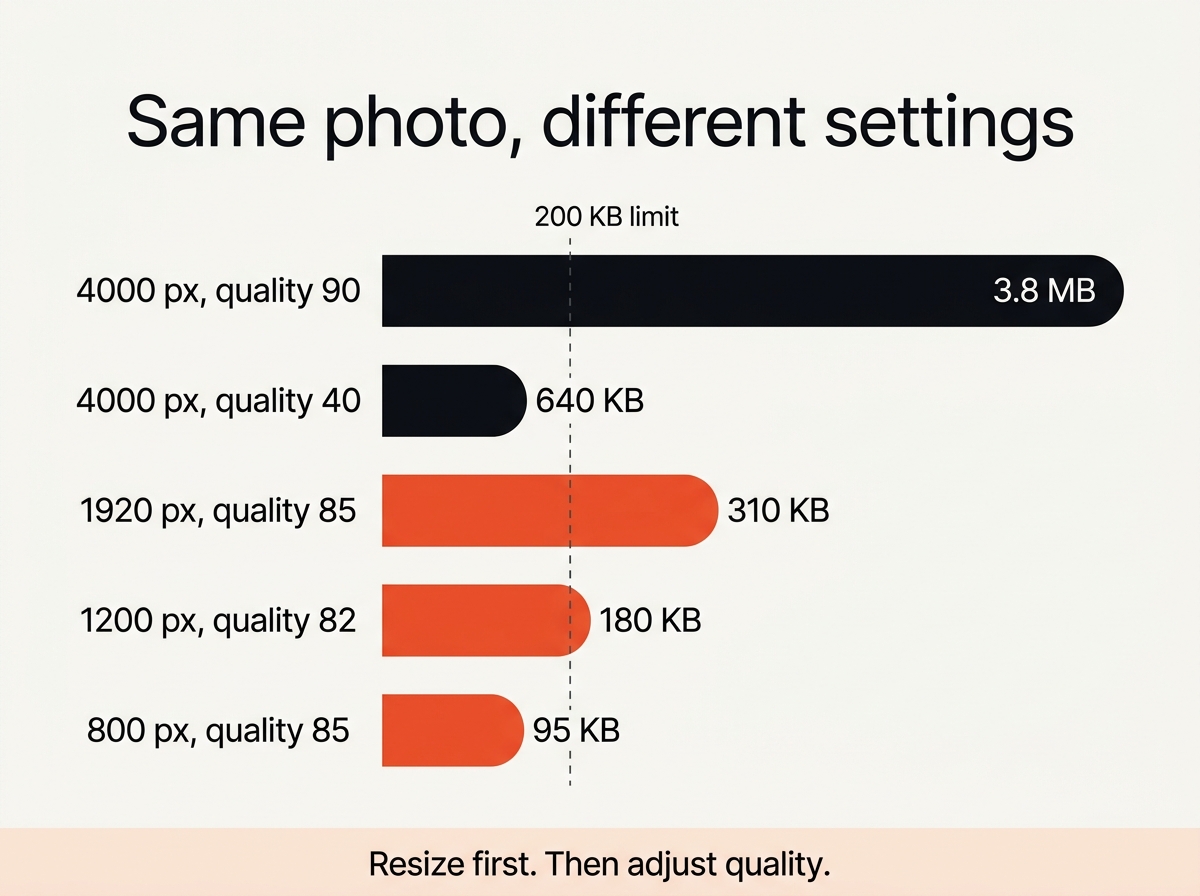
Some, and how much depends on the resolution you keep. A 1200 pixel JPG at compression level 80 looks crisp on any screen and weighs around 150 to 250KB. The same photo forced to 200KB at 4000 pixels needs a level around 30 and looks blotchy. Let the tool reduce the pixel size and the picture stays sharp. For reducing size without a fixed number, the regular image compressor is the simpler choice.
Frequently asked questions
Can I reduce a photo to under 100KB?
Yes. Set the target to 100KB and the longest side to 800 or 1200 pixels. Most photos fit at a compression level of 75 or better.
Which formats work?
JPG, PNG and WebP as input; JPG or WebP as output. PNG is lossless and has no compression level, so a PNG photo is converted to JPG to reach the target.
Does the tool upload my photos?
No. The whole reduction runs in your browser. Users keep their files on their own device.
Why is the result sometimes larger than the target?
Only when the image cannot fit even at the smallest pixel size and strongest compression the tool allows. The badge then says “smallest possible”. Crop the image or lower the longest side further.
Does it remove the EXIF data?
Yes. The new version is written fresh, so camera data and GPS coordinates are dropped, which also saves a few kilobytes.
Can I reduce the size of many images at once?
Up to 20 per batch, all with the same limit, with one download button for the ZIP.
Is this online tool free?
Yes. No limits on the number of files, no account, no watermark.