Our free image resizer changes image dimensions right in your browser. Drag and drop your image, enter your desired width or height, and save a resized copy a second later. No upload, no account, no watermark.
How to resize your images
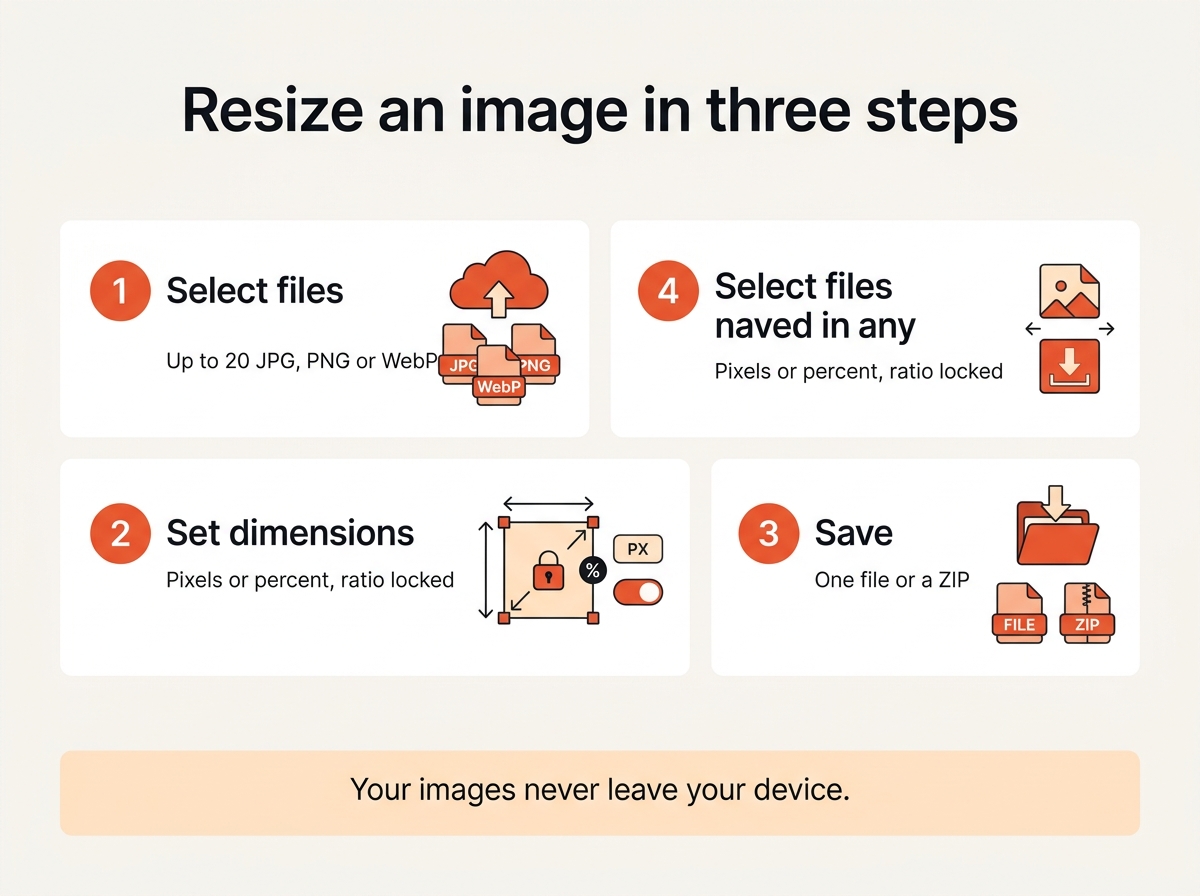
- Upload your image by dropping it into the box above, or click to select up to 20 image files at once.
- Enter your desired dimensions in pixels. With the aspect ratio locked, one value is enough and our tool calculates the other.
- Or scale by percent. 50 halves an image, 200 doubles it.
- Save the result. Every resized image gets its own download button; a batch can be saved as one ZIP.
Our image resizer supports JPG, PNG and WebP and keeps the original format. To change the format as well, use our image converter afterwards.
Why resize images?
A phone photo is 4000 pixels wide. No screen shows that at full size, no website needs it, and no upload form wants it. Resizing images is the single biggest lever for smaller files:
- Websites. 1200 to 1920 pixels wide is plenty for a full-width image. Larger images slow pages down and hurt Core Web Vitals.
- Social media. Each network wants its own dimensions. Resize your images beforehand and nothing gets cropped off.
- Email and messengers. At 1200 pixels an image is a tenth of its original weight and looks identical on a phone.
- Forms and portals. Many require exact pixel sizes, for example 413 by 531 for a passport photo.
- Thumbnails and avatars. Small images need a proper resample, not a browser squeezing a huge file.
Will resizing affect image quality?
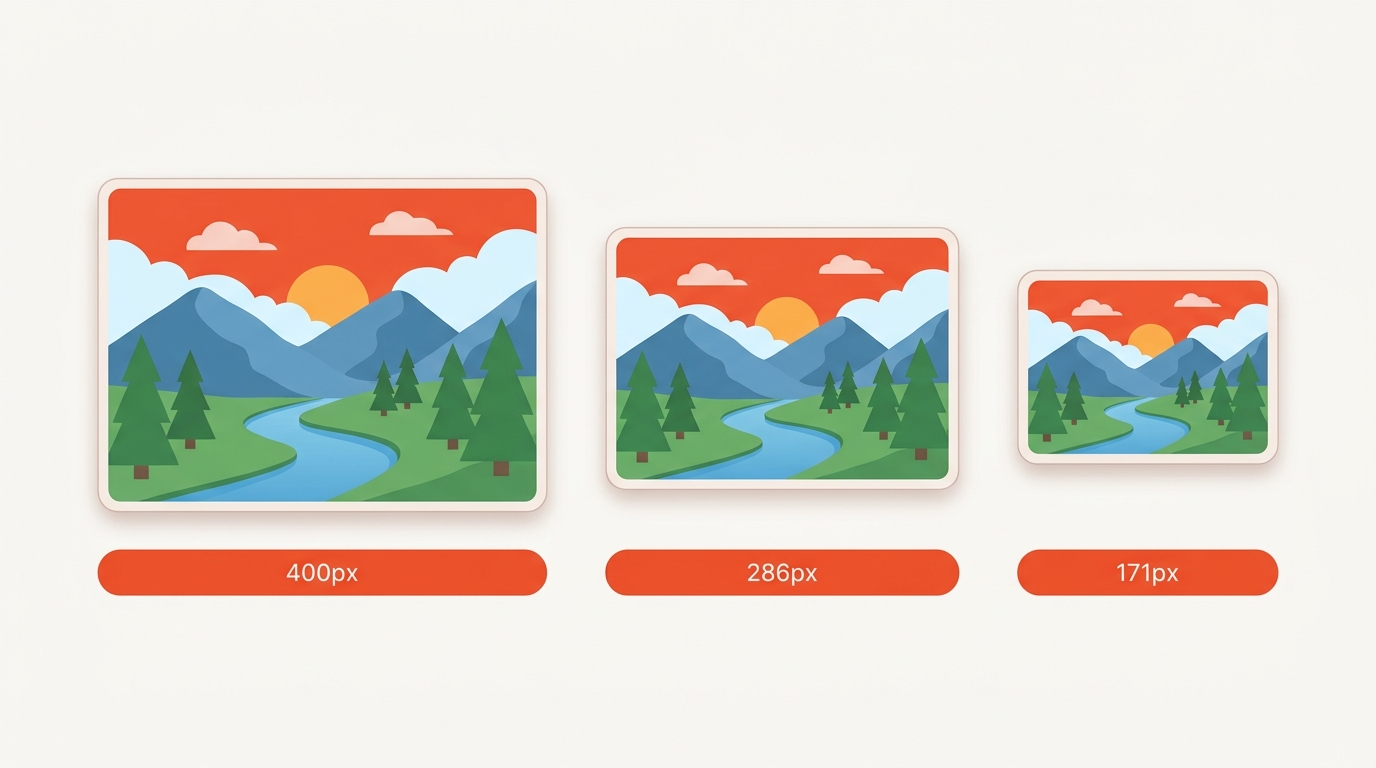
Making an image smaller keeps it sharp. Our resizer uses high quality interpolation, so a 4000 pixel photo scaled to 1200 pixels looks crisp on any screen.
Making an image larger is different. Upscaling cannot create detail, so a 400 pixel image stretched to 1600 pixels turns soft. Use enlargement for modest steps such as 120 or 150 percent, and start from the best original you have.
Common image sizes
| Use | Width × height |
|---|---|
| Full-width website image | 1920 × 1080 |
| Blog post image | 1200 × 800 |
| Open Graph preview | 1200 × 630 |
| Instagram post | 1080 × 1080 |
| Instagram story | 1080 × 1920 |
| YouTube thumbnail | 1280 × 720 |
| Email header | 600 × 200 |
If your image has a different ratio than the target, crop it first and resize afterwards. Resizing never changes the ratio unless you unlock it.
Resize or compress?
Resizing changes how many pixels an image has. Compressing changes how tightly they are packed. For a file that is too large, resize first: cutting 4000 pixels to 1920 removes three quarters of the data before any quality is lost. If the dimensions are right and the file is still heavy, use our image compressor or set an exact limit with the compress to size tool.
Frequently asked questions
Which image formats are supported?
JPG, PNG and WebP, plus GIF and BMP as input. HEIC photos from an iPhone need our HEIC converter first.
Is this online image resizer free?
Yes. No limits, no watermark, no sign-up.
Are my images uploaded anywhere?
No. Resizing runs in your browser using its built-in canvas, so your image files never leave your device. Our tool even works offline once the page has loaded.
Can I resize images for social media?
Yes. Enter the dimensions from the table, or crop to the platform ratio first and then resize to its width.
Can I resize several images at once?
Up to 20 per batch, all with the same settings, with a ZIP at the end.
Does the resized image keep EXIF data?
No. A resized image is written fresh, so camera data and GPS coordinates are dropped. Keep the original if you need them.