Our free image converter changes the image format of any file on your own device. Drop up to 20 images, pick the format you need, and save the results one by one or as a ZIP. No software to install, no cost, no account, and more formats than most online tools offer.
How to convert your images
- Upload your images into the box, or drag them in. Image formats like JPG, PNG, WebP, GIF and BMP are accepted.
- Pick the target format.
- Set the quality for lossy output. 82 is a good default; lossless output ignores the slider.
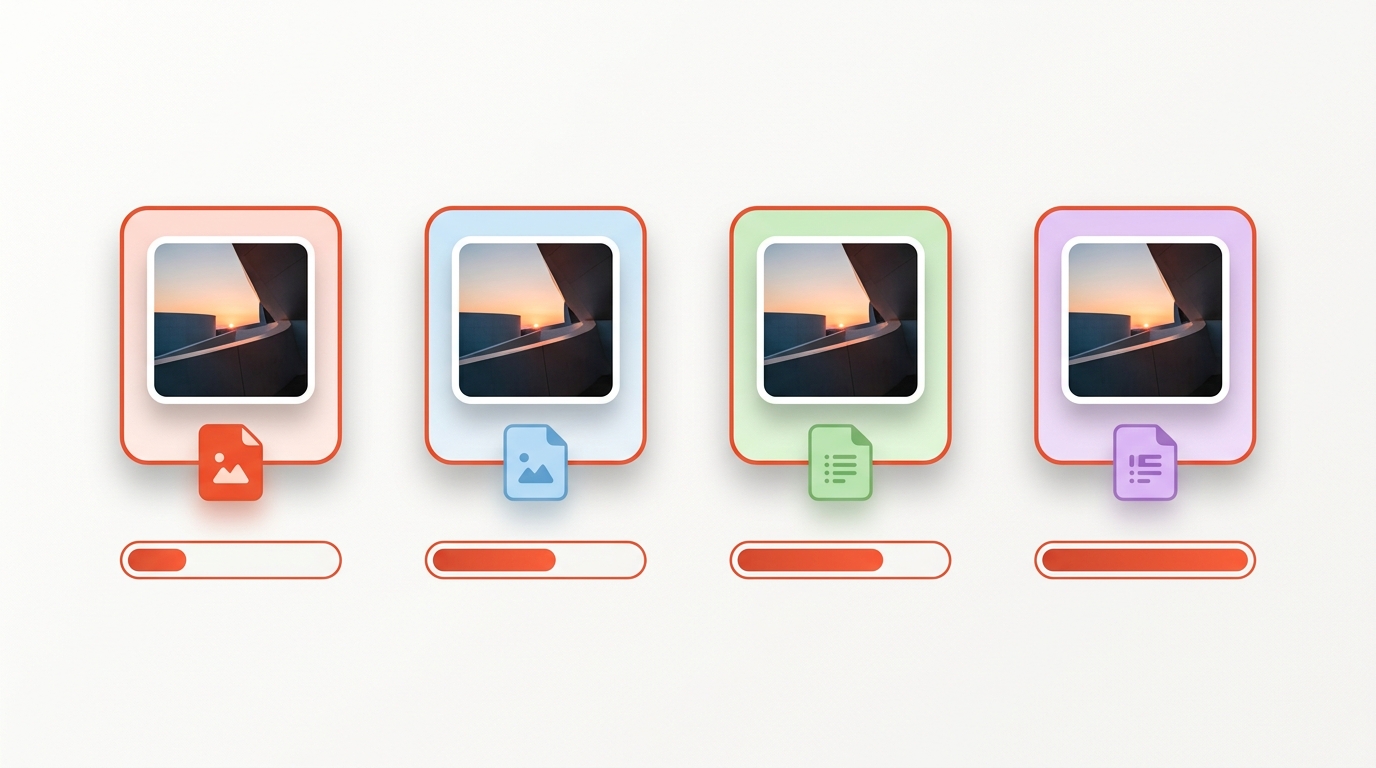
- Save. Every converted image shows its new size next to the old one, so you see what the conversion gained.
Change a setting at any time and all files are converted again instantly.
Which image format should you choose?
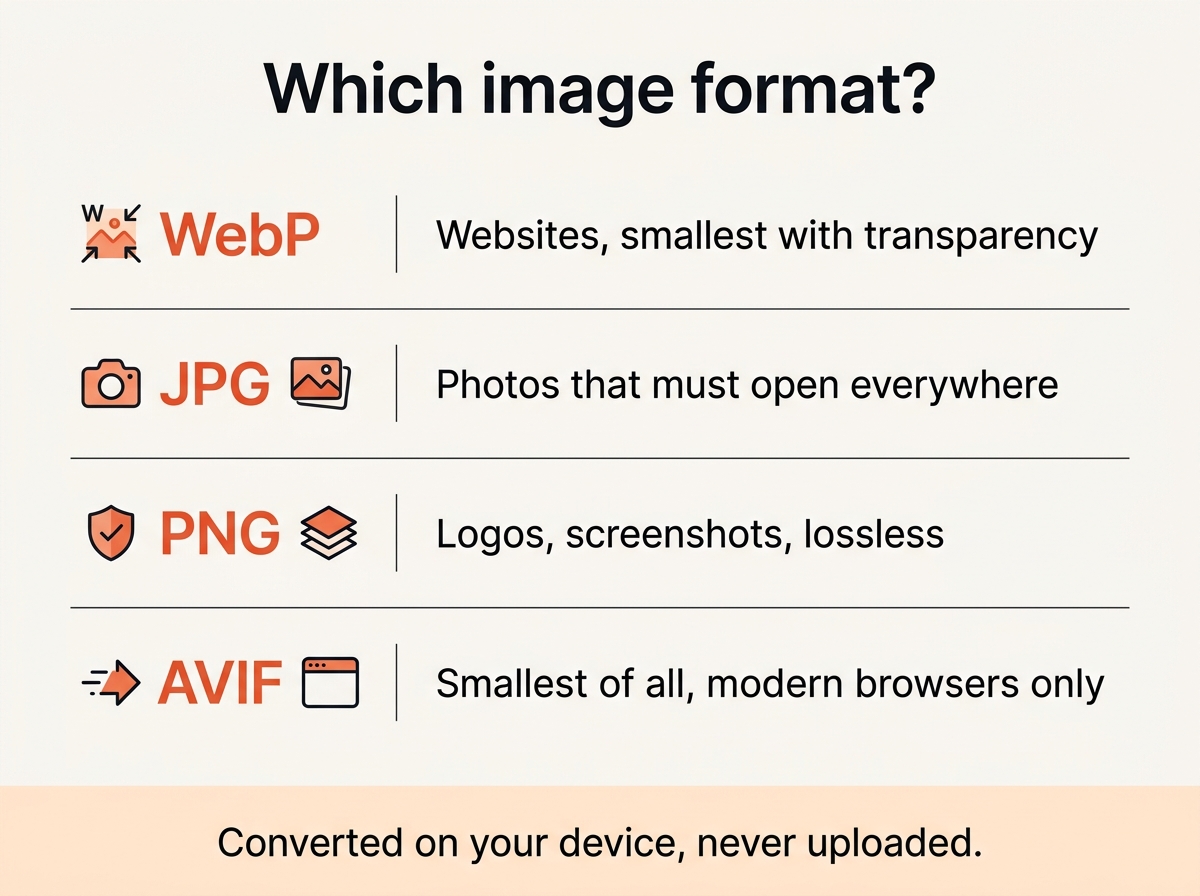
WebP is the all-round choice for anything on a website: a quarter to a third smaller than JPEG at the same quality, with transparency, and widely supported by every current browser. JPEG remains the safe choice for photos you send to people, print services and forms. PNG keeps every pixel exact, which logos and screenshots need. AVIF goes smaller still, but it is less widely supported; if your browser cannot write it, the tool tells you and falls back to JPEG.
Our guide to image formats compares them in detail, including specific cases like transparency and animation.
What happens to transparency?
JPEG cannot store transparent areas. When you convert a transparent PNG to JPEG, the converter fills the background with white, so you get a clean result instead of a black box. If you need transparency, pick WebP or PNG.
Does the conversion lose quality?
Re-encoding between lossy formats loses a little detail each time. At quality 80 or above you will not see it. A lossless target keeps everything. Keep your original and make copies from it, rather than re-encoding the same file over and over.
Convert images online, but on your device
Most online converters upload your files to a server, queue them and send them back. This tool uses the decoder and encoder built into the browser. The conversion is immediate, it works offline once the page is loaded, and nothing is uploaded. For HEIC photos from an iPhone, which browsers cannot decode on their own, use our HEIC converter.
Frequently asked questions
Is this image converter free?
Yes. No limits, no watermark, no cost.
Which formats are supported?
Input: JPG, PNG, WebP, GIF, BMP. Output: WebP, JPEG, PNG and AVIF. SVG and PDF are not bitmaps and are not supported.
Do you upload or store my images?
No. Everything runs locally, so there is nothing to delete afterwards.
Can I convert several images at once?
Yes, up to 20 per batch with the same settings, then download them as a ZIP.
Why is my converted file larger than the original?
A small, well compressed photo turned into a lossless format grows, because lossless keeps every pixel. Pick WebP or JPEG for photos. If size is the goal, our image compressor is the better tool.
Can I use the converter for design work?
Yes. Designers use it to turn exports into web-ready WebP or to get a lossless PNG from a JPEG for further editing.