Upload an image, click any pixel, and our color picker shows its HEX and RGB value and copies the code to your clipboard. It also extracts the six dominant colors of the image as a palette. Everything happens in your browser.
How to pick a color from an image
- Upload the image into the box above, or drop it in. JPG, PNG and WebP work.
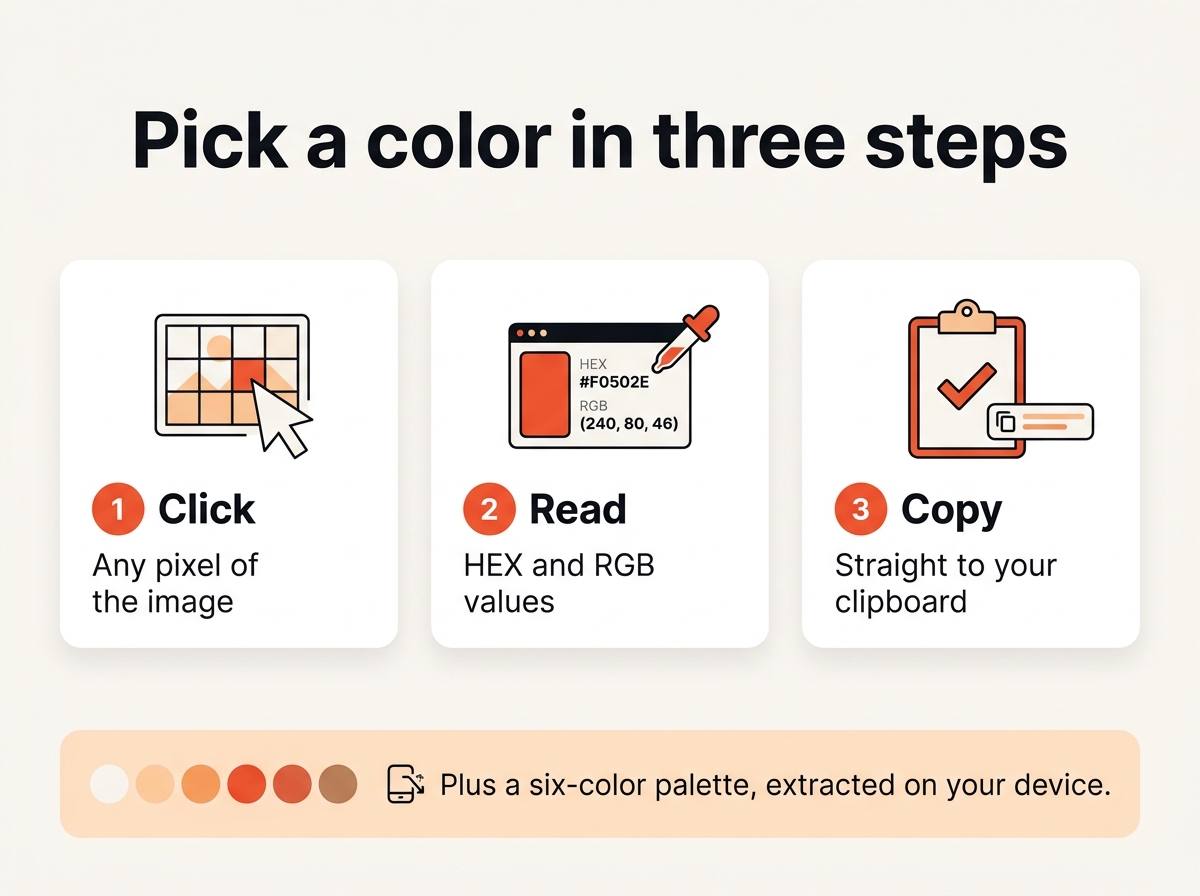
- Click the pixel you want. The swatch shows the color, the readout shows the HEX and RGB values, and the HEX code lands in your clipboard.
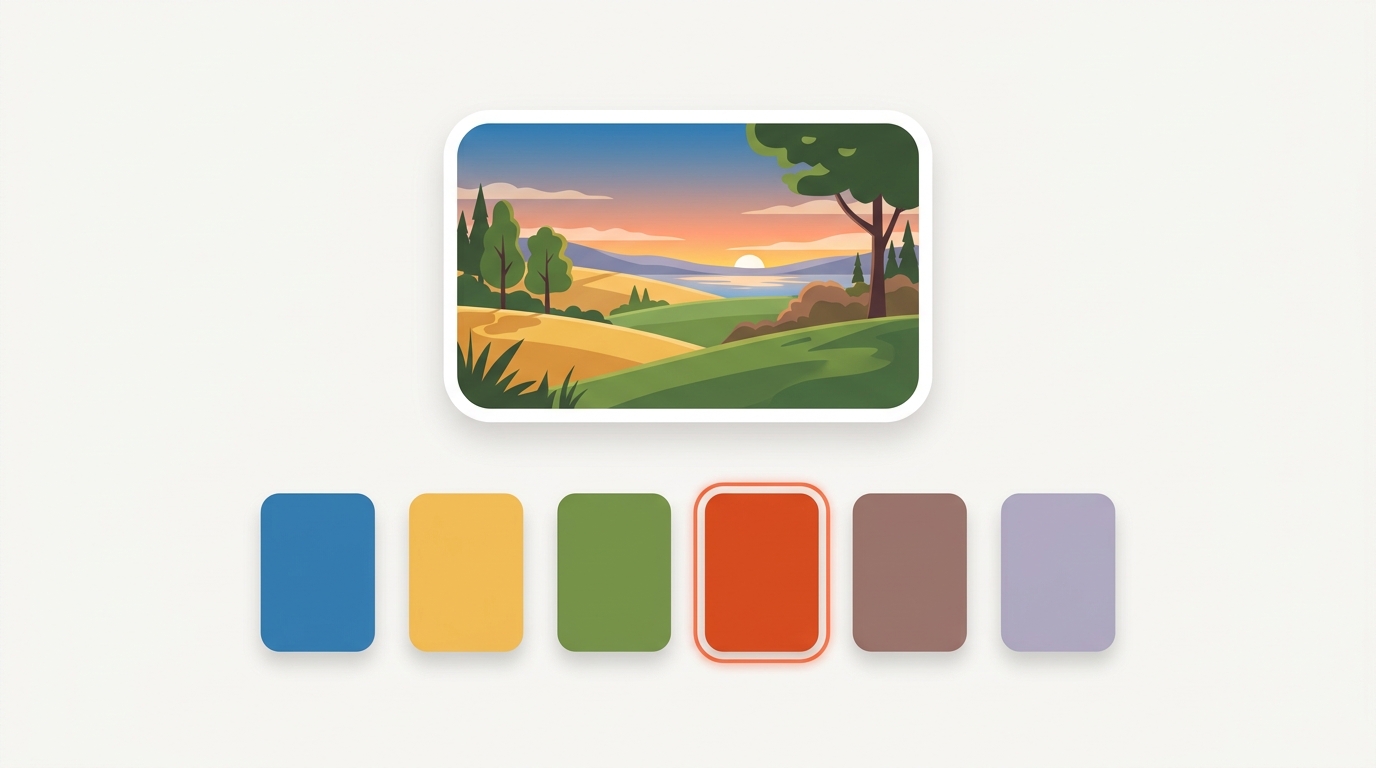
- Use the palette. Below the image you get the six most common colors. Click one to select it and copy its code.
Pick as many colors from the image as you need; every click updates the values.
Why extract colors from an image?
- Match a brand. Pull the exact HEX of a logo from a screenshot when nobody can find the style guide.
- Build a palette. Start a design from a photo you love and let the dominant colors set the mood.
- CSS and themes. Copy the value straight into a CSS variable, a Tailwind config or a design token.
- Print and craft. Find the RGB of a fabric or paint sample to reorder the same shade.
- Accessibility checks. Read the exact text and background colors from a mockup and test their contrast.
HEX vs RGB: what is the difference?
They describe the same color in two notations. HEX writes red, green and blue as a six-digit code, for example #F0502E, which is what CSS, design tools and most apps expect. RGB writes the three channels as numbers from 0 to 255, for example rgb(240, 80, 46), which is handy for code that mixes colors. The picker shows both for every pixel, so you can use whichever your tool needs.
Tips for an accurate pick
- Zoom in your browser before clicking a thin line or a small logo. The picker samples exactly one pixel.
- Avoid edges and shadows. A pixel on the border of two colors is a blend of both. Pick from a flat area.
- Photos vary pixel to pixel. For a brand color, use a logo file or a screenshot of the website rather than a photo of a printed product.
- Use the palette for averages. The dominant colors are averaged over many pixels, which is often closer to what you see than any single pixel.
Frequently asked questions
How are the dominant colors found?
The image is scaled down, every pixel is sorted into a coarse color bucket, and the six fullest buckets are averaged. That gives you the colors that cover the most area, not the brightest ones.
Can I get the HSL or CMYK value?
Not yet. The picker returns HEX and RGB. For CMYK, use the HEX in your print tool, which converts it with the correct color profile.
Does the tool upload my image?
No. Picking and palette extraction run on your device using the browser canvas.
Can I pick a color from a screenshot?
Yes. Take the screenshot, drop it in, and click the element you want. For colors on a website, this is more reliable than a photo of the screen.
Which image formats work?
JPG, PNG, WebP, GIF and BMP. For HEIC, convert first with the HEIC converter.