This free EXIF viewer shows you the photo metadata a camera or phone stored inside an image file: camera settings, lens, the exact time the photo was taken and, if location was on, the GPS coordinates of where the photo was taken. Drop a JPG and the results appear in a second, read in your browser and never uploaded.
How to use the metadata viewer
- Drop the photo into the box above, or click to choose one.
- Read the results. The viewer lists file size and image dimensions first, then the EXIF fields: camera, lens, date taken, exposure time, aperture, ISO and focal length.
- Download a clean copy if you need to share the photo without its metadata. The viewer offers a copy with EXIF and GPS removed right below the results.
For a lossless strip of all metadata across many files, use our metadata remover instead.
What photo metadata contains
EXIF stands for Exchangeable Image File Format. It is the metadata block cameras and phones store inside JPG and TIFF files, and many apps add it to PNG and WebP too. A typical photo carries these details:
- Camera and lens: make, model, lens and sometimes the serial number
- Camera settings: shutter speed, aperture, ISO, focal length, flash
- Date and time the photo was taken, to the second
- GPS coordinates of the location, often accurate to a few meters
- Orientation, so the image displays upright
- Software used to edit the file, and often an embedded thumbnail
This image metadata viewer reads the fields that matter for most people. Deep technical tags, maker notes and the XMP and IPTC blocks are not listed; for those you need desktop tools such as ExifTool.

When you need an EXIF viewer
- Before sharing. Check whether a photo still contains GPS coordinates and a timestamp before it goes to a forum, a marketplace or a client.
- Learning photography. See the exact camera settings behind a shot you admire, your own or someone else’s.
- Verifying a photo. Camera details and a plausible capture time are the first things to look at when you want to know whether an image is real. Our guide on spotting AI-generated images explains what to check.
- Sorting a library. The date taken is more reliable than the file date, which changes with every copy.
- Fixing orientation. A photo that displays sideways usually carries an orientation tag the viewer can confirm.
- Finding where a photo was taken. With GPS coordinates stored in the file, any map app shows the spot.
Where a photo was taken: the GPS fields
Phones store latitude, longitude and often altitude in the GPS section of the EXIF data. The viewer tells you when GPS coordinates are present. To see the location, copy them into a map app. If you do not want the world to know where you live, use the clean copy before you post the photo anywhere; most people are surprised how often their own images carry a street address.
Why some images show no metadata
If the viewer reports no EXIF data, one of these is the reason:
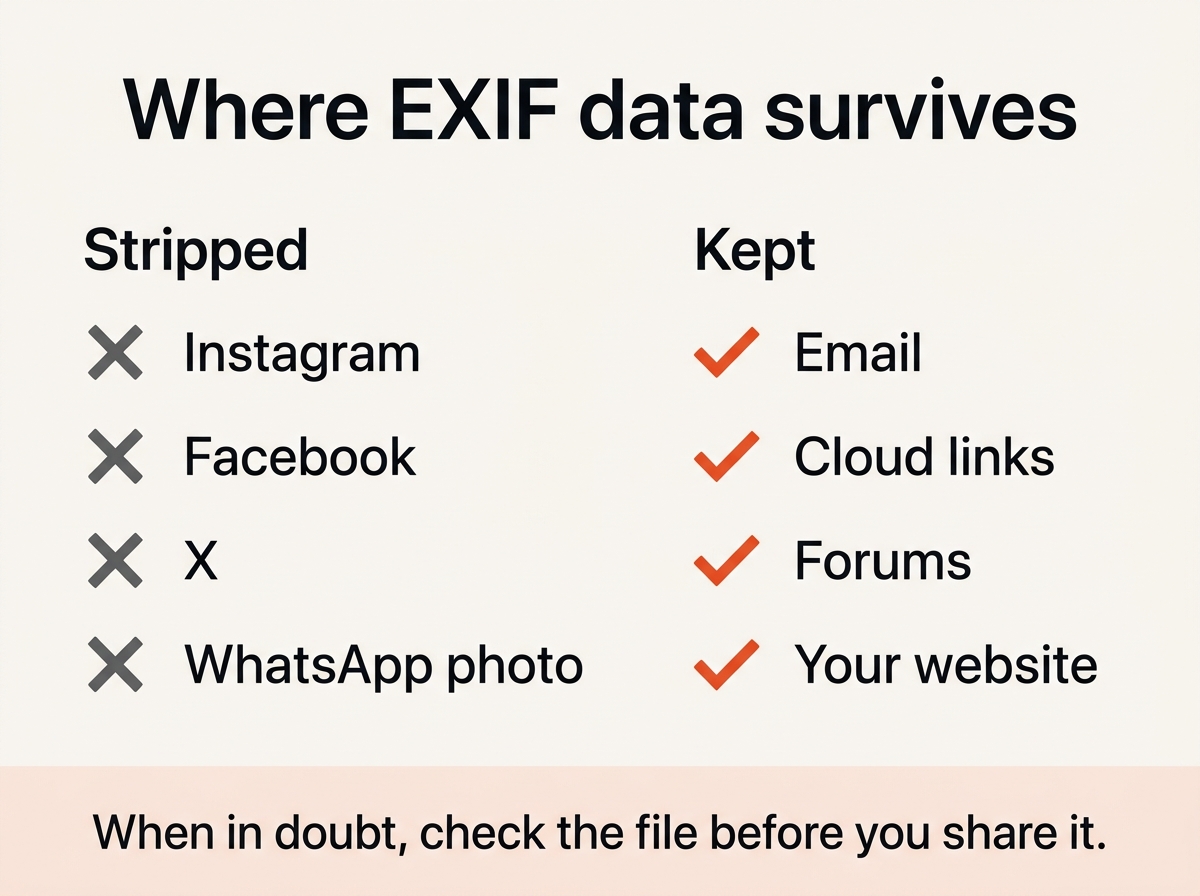
- The platform stripped it. Facebook, Instagram, X and most messengers remove image metadata on upload. A photo downloaded from there is clean.
- The file is not a JPG. The viewer reads EXIF from JPG files. PNG and WebP can carry metadata, but it is far less common.
- It is a screenshot or an export. Screenshots have no camera details, and many editors drop EXIF when exporting.
- It was generated. AI image generators produce files without camera metadata, unless the tool added some on purpose.
Read image metadata in your browser, not on a server
Most online EXIF viewers upload your photo before they read it. This tool parses the file in your browser with JavaScript and shows the results immediately. The image never leaves your device, which matters when the point is to find out what private details the file carries. It also means you can use the viewer offline once the page has loaded, and there is nothing to delete afterwards.
Frequently asked questions
Can I edit EXIF data here?
No. The viewer reads metadata and offers a clean copy without it. For editing fields, use ExifTool or a desktop photo manager.
Does the viewer show the GPS coordinates on a map?
It tells you whether GPS data is present. To see the location, copy the coordinates into any map app.
Does social media strip EXIF data from uploaded photos?
Most large platforms do. Email, cloud links, forums and your own website pass the file on unchanged. When in doubt, download the published image and drop it into the viewer.
Which file formats work?
JPG for full EXIF data. PNG, WebP, GIF and BMP are accepted and show file size and dimensions, plus any metadata the viewer can read from them.
How do I remove EXIF data from photos?
Download the clean copy offered below the results, or use our metadata remover to strip EXIF, XMP and IPTC from up to 20 files without re-encoding them.
What is the difference between EXIF, IPTC and XMP?
EXIF is written by the camera: settings, date, GPS. IPTC holds editorial fields such as caption, author and copyright. XMP is Adobe’s container for editing history and everything else. All three can live in one file.
Is this EXIF viewer free?
Yes. No limits, no account, and your images are never uploaded.