Easily crop your image to exactly what you want to show. Drag the frame, pick a preset ratio or keep it free, and get the result in a second. This free image cropper runs in your browser, so your photo is never uploaded.
How to crop an image, step by step
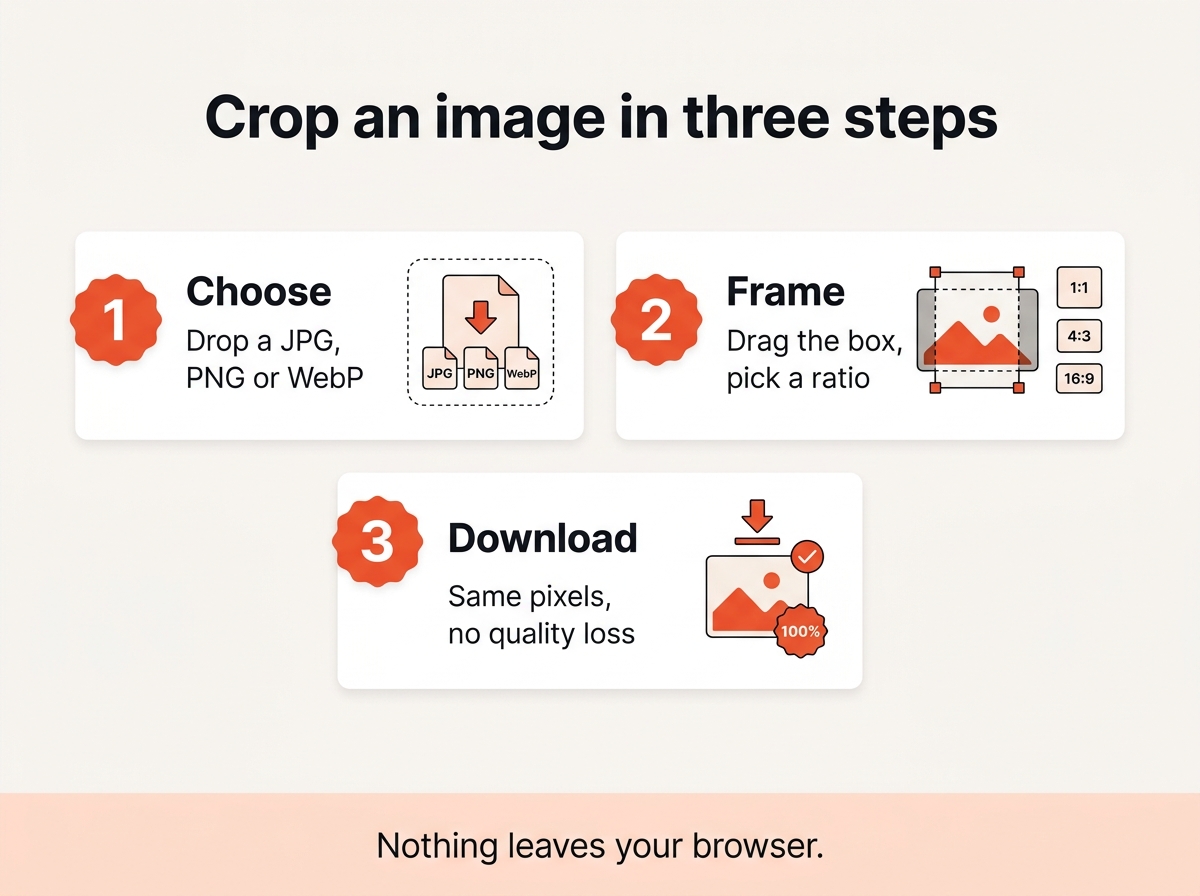
- Upload your image into the box above or drop it in. All common formats work: JPG, PNG, WebP, GIF and BMP.
- Choose a ratio. Free lets you drag any shape. The presets lock the frame to 1:1 for avatars, 4:5 for portrait posts, 3:2 for prints and 16:9 for thumbnails and headers.
- Move the frame over the part you want to keep. The readout shows the selection in pixels, so you get exactly the output you need.
- Click Crop & download. The output keeps PNG as PNG; everything else is saved as a high quality JPG.
Need a specific pixel size as well? Crop and resize the image in two steps: trim it here, then use our image resizer. Cropping decides what is in the picture, resizing decides how big it is.
When cropping beats resizing
Resizing shrinks the whole picture. Cropping cuts parts away. That matters more often than you would think:
- Avatars. A square around the face reads clearly at 40 pixels. A whole scene squeezed into a square does not.
- Social media. Instagram, LinkedIn and YouTube each want their own ratio. Trim to the preset once and nobody loses their head.
- Product shots. A tight frame without empty background makes thumbnails pop.
- Screenshots. Cut away the browser bar, the taskbar and anything you did not mean to share.
- Prints. 3:2 and 4:3 match standard paper, so the lab trims nothing.
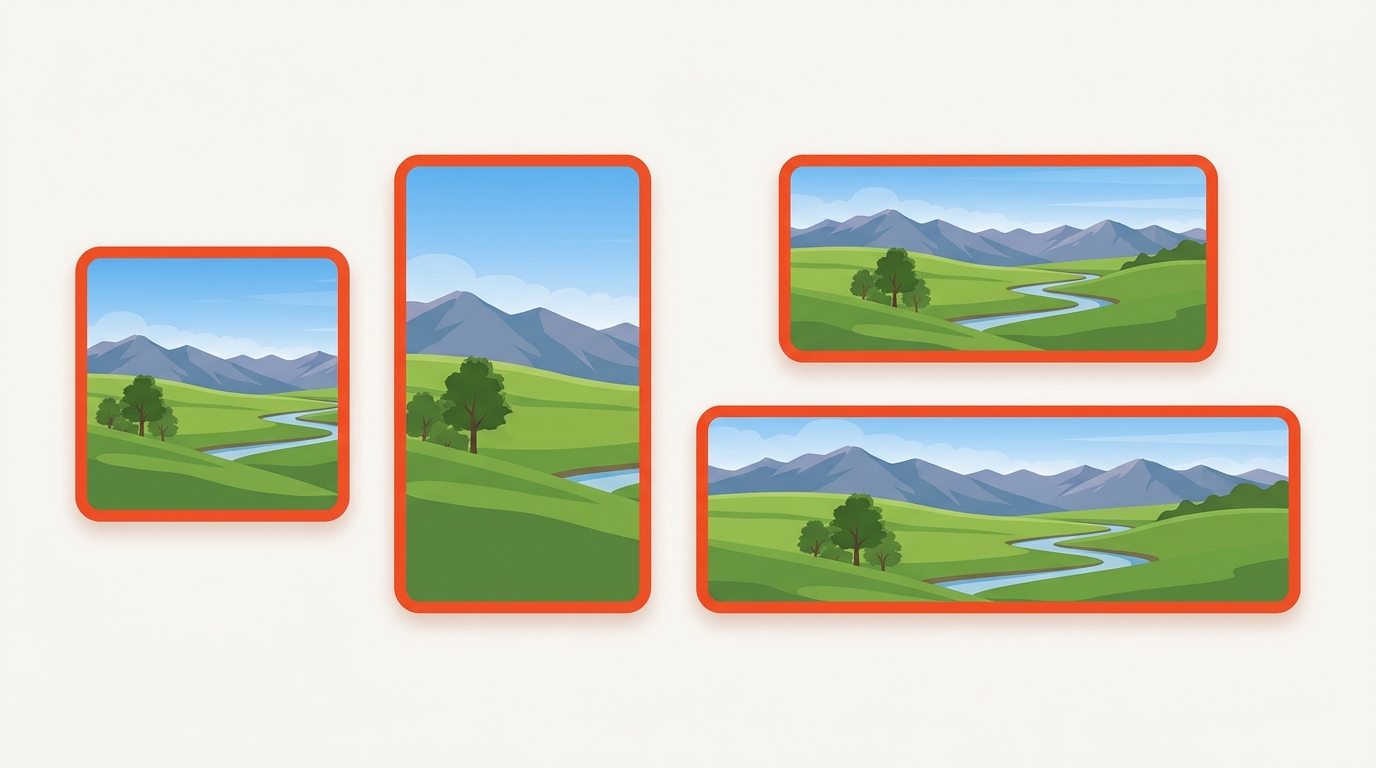
Does cropping reduce quality?
No. Every pixel inside the frame stays exactly as it was. What changes is the pixel count, so a tight cut from a small photo may be too small for a large print. Check the readout before you download, and start from the largest file you have.
Ratios for the most common uses
| Use | Ratio | Typical output |
|---|---|---|
| Avatar, Instagram post | 1:1 | 1080 × 1080 |
| Instagram portrait, Pinterest | 4:5 | 1080 × 1350 |
| Photo prints 10 × 15 cm | 3:2 | 3000 × 2000 |
| YouTube thumbnail, website header | 16:9 | 1280 × 720 |
| Stories, Reels, TikTok | 9:16 | 1080 × 1920 |
| Open Graph preview | 1.91:1 | 1200 × 630 |
For 9:16 and 1.91:1 choose Free and watch the readout while you drag. There is no need for a perfect hand; the numbers tell you when you are there.
Crop images online without an upload
Most online tools send your picture to a server and back. This image cropper uses the canvas built into your browser: the cut is instant, it works offline once the page has loaded, and a scan of your passport never sits on somebody else’s disk. Using it is also the quickest way to get a clean thumbnail from your phone without any editing app.
Frequently asked questions
Is the crop image tool free to use?
Yes, with no limits, no watermark and no sign-up.
Which formats are supported?
JPG, PNG, WebP, GIF and BMP. HEIC photos from an iPhone go through our HEIC converter first.
Can I rotate the image?
Not in this tool. Rotate the photo in your gallery app first, then trim it here. Rotate and crop together is on our list.
Can I undo a crop?
The original on your device is never changed, so drop it in again and crop differently.
Can I crop a circle?
Trim to 1:1 here; nearly every platform applies the round mask itself.
Will the result be a smaller file?
Usually yes, because fewer pixels remain. To hit an exact limit, use the compress to size tool afterwards.