How to Take a Scrolling Screenshot on Any Device

A normal screenshot stops at the edge of the screen. When you need the whole chat history, the entire article or a receipt that runs past the fold, you need a scrolling screenshot, and support for it is far more uneven than most guides admit.
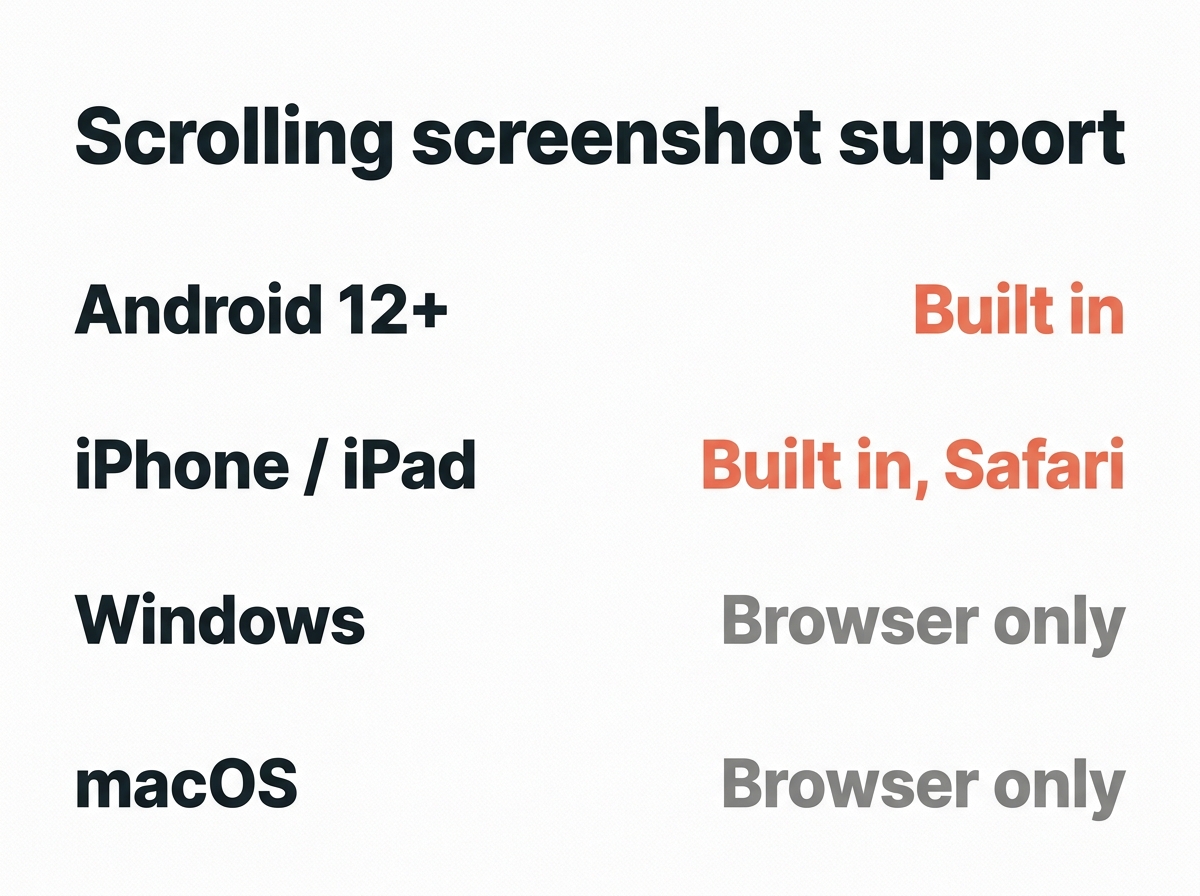
Two platforms do this natively. Two do not, and for those the workaround is your browser. Here is what each one can actually capture.
The short answer by platform
| Platform | Native scrolling capture | What to use instead |
|---|---|---|
| Android 12 and later | yes, in supported apps | scroll capture in the screenshot toolbar |
| iPhone and iPad | yes, in Safari and some apps | Full Page in the screenshot preview |
| Windows | no | Edge or Firefox full page capture |
| macOS | no | Safari, Firefox or Chrome full page capture |
The two “no” rows surprise people, because the internet is full of keyboard shortcuts that claim otherwise. None of them are real. On macOS in particular, you will find advice to press Shift, Command, 4 and then Space to capture a scrolling window. That combination captures a single window, not a scrolling one, and no native macOS shortcut captures content below the fold.
Android: scroll capture in the toolbar
Android 12 introduced a native scrolling screenshot, and Samsung and Pixel devices have had their own version for longer. From there the flow is the same on all of them.
- Press the power button and the volume down button together to take a normal screenshot.
- Watch the toolbar that appears at the bottom of the screen area. It disappears after a few seconds, so do not look away.
- Tap the option labelled Scroll capture, Capture more or Extended screenshot, depending on your manufacturer.
- The screen scrolls and the preview grows. Tap again to extend further, or drag the crop handles to choose the area where the capture ends.
- Choose Save, and the image is written to your gallery.
The limitation is app support. The feature works where the app uses a standard scrolling view, which covers most web pages, settings screens and many chat apps. Where an app draws its own custom scrolling, the option simply does not appear in the toolbar. That is not a bug you can fix.
iPhone and iPad: Full Page
On iOS the feature lives inside the screenshot preview rather than in a separate tool.
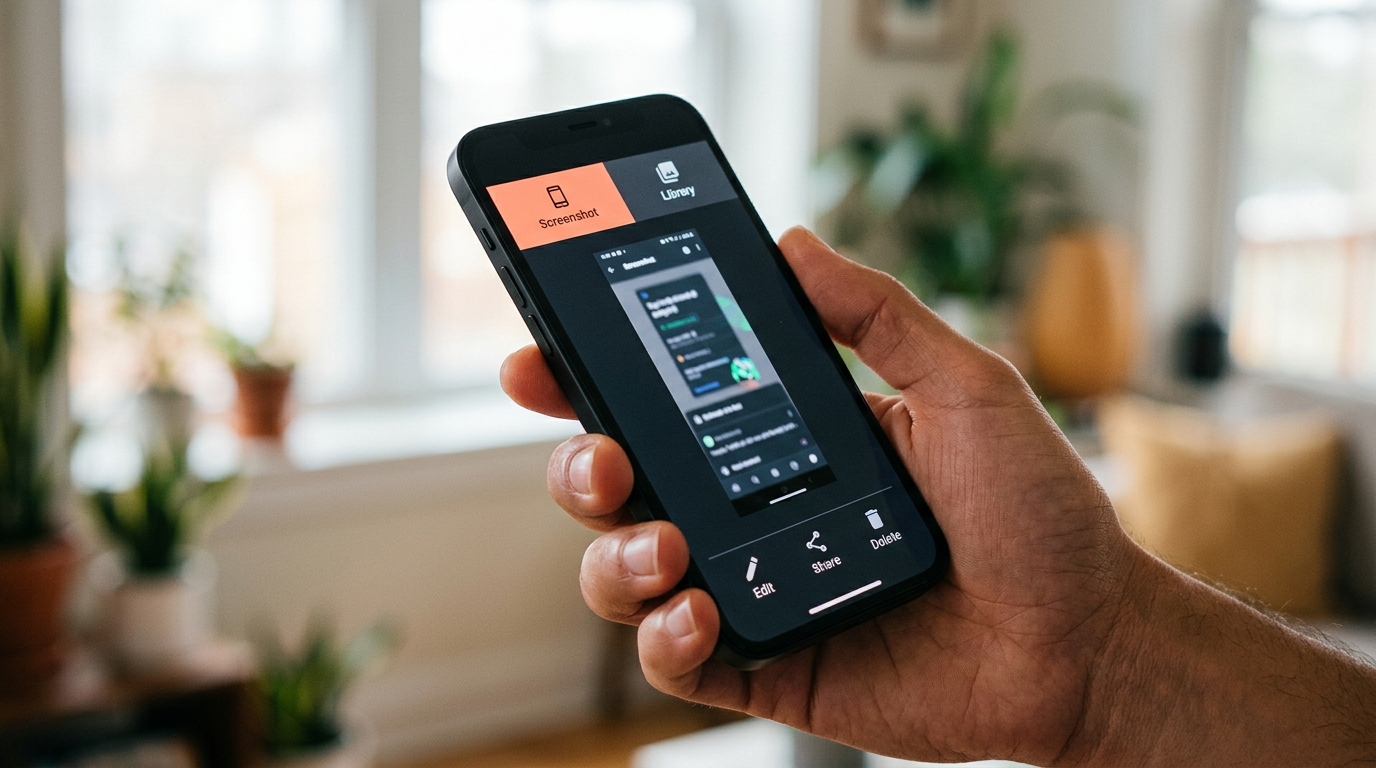
Press the side button and the volume up button together to take a screenshot, or the side and Home buttons on older models. Tap the thumbnail in the lower left corner before it fades, then switch from Screen to Full Page at the top. Tap Done and choose where to save the result.
Apple’s own guide to screenshots on iPhone documents this for content that exceeds the screen length, using an entire webpage in Safari as its example. It also covers the part that catches people out: the result can be saved to Photos or saved as a PDF in Files.
This PDF behaviour is the main complaint from users. A full page capture in Safari is a document, not an image, and if you needed a PNG to paste into a chat you have more work to do. Converting it afterwards is straightforward, but it is an extra step nobody expects.
Full Page is also not universal. It appears in Safari reliably and in a handful of other apps, usually ones that use the same rendering engine. In most third-party apps the option is missing.
Windows: the browser does the work
Windows has no built-in scrolling screenshot. Neither the Print Screen key, Win + Shift + S nor the Snipping Tool can reach past the visible screen area, and no setting changes that.
For web pages, the browser handles it:
- Microsoft Edge has a built-in web capture. Open the right-click menu or the toolbar and choose the capture full page option.
- Firefox puts Take Screenshot in the right-click menu. Open it and choose Save full page to capture the whole webpage.
- Chrome can capture a full-page image through developer tools, which is more fiddly than the other two and worth avoiding unless you already live in there.
For anything that is not a web page, such as a long PDF, a spreadsheet or a chat client, you need a dedicated capture tool. Several exist, and they work by scrolling the window in steps and stitching the frames together. Check what a tool does with your captures before installing it, since image handling and privacy terms vary a lot.
macOS: same answer
macOS is in the same position. Shift + Command + 3, 4 and 5 all capture what is on screen, and the Screenshot app adds recording and timers but not scrolling.
Use the browser. Safari, Firefox and Chrome all offer a full-page capture of the webpage on macOS, and Safari’s lives in the Develop menu once you enable it, or through the share sheet on a page.
For non-browser content, a third-party stitching tool is again the only route.
Capturing a whole web page, whichever device you are on
If the thing you want is a web page, the browser route is better than the operating system route on every platform, including the two that have native support.
The reason is quality. A native scroll capture works by taking several screenshots and joining them, which can leave visible seams, repeated sticky headers or a floating cookie banner stamped three times down the image. A browser full page capture renders the page once at full height, so it comes out clean.
If your scrolling screenshot has a navigation bar repeated every few hundred pixels, that is what happened, and switching to the browser method fixes it.
When a screen recording works better
Where no scrolling capture is available, a screen recording is the honest fallback, and it is often the better answer anyway.
Use a screen recorder when the content refuses to be captured as a single image:
- A chat history in an app whose custom scrolling view blocks scroll capture.
- A map, a canvas or anything you pan rather than scroll.
- A sequence where the order matters, such as showing someone which button to press.
Every platform has one built in. On Windows you press the Windows key together with Alt and R. On macOS, Shift, Command and 5 open the Screenshot app, where screen recording sits beside the capture options. On iPhone and Android, screen recording is a toggle in the control centre or quick settings that you may need to add first.
The trade-off is file size and convenience. A screen recording of a long page is far larger than a full-page image and harder for the recipient to skim. Choose a recording when the motion carries the meaning, and a scrolling screenshot when the content does.
Why the option sometimes does not appear
Four reasons cover nearly every case, and they are easy to tell apart:
- The app does not support it. Most common on Android and iOS. Custom scrolling views cannot be captured by the system.
- There is nothing below the fold. If the content fits on screen, the scroll option is hidden because it has nothing to do.
- The toolbar timed out. On Android the option disappears within a few seconds. Take the screenshot again and act faster.
- Your Android version predates it. Native scroll capture arrived with Android 12. On older devices only manufacturer implementations exist, if any.
A quick checklist before you capture
A scrolling capture is harder to redo than a normal one, so these are worth a moment first.
- Close what you do not want in the shot. Cookie banners, chat bubbles and notification toasts are all captured with everything else, and on a long page they repeat.
- Collapse sticky elements if you can. A header that follows you down the page will appear in every stitched frame.
- Check the zoom level. On a wide desktop screen, zooming out from 100 percent fits more into each frame and reduces the number of seams.
- Decide on the format now. If you need an image and your device produces a PDF, you will want to convert it before sending, not after somebody asks.
- Open the page fully first. Content that loads as you scroll, such as an infinite feed, is captured only as far as it has loaded.
Thirty seconds of preparation saves a second attempt, and with a long page the second attempt is the annoying part.
What to do with the result
Scrolling screenshots get large. A full article captured at phone resolution can easily pass 5 MB, and a desktop page capture can be far bigger, because the image may be several thousand pixels tall.
Three steps make it usable:
- Scale it down with the image resizer. A capture of the screen that is 8000 pixels tall rarely needs to stay that way.
- Compress it with the image compressor, which matters more here than on a normal screenshot.
- Trim the dead space with the image cropper. Long captures usually carry a lot of empty margin.
All three run in your browser, so the capture never leaves your device. If you want the full picture on normal screenshots too, our guide to taking a screenshot on any device covers the basics for all four platforms.
Quick answers
How do I capture a full page on Windows?
Windows cannot do it natively. Use Edge or Firefox for web pages, and a dedicated capture tool for anything else.
Can you take a scrolling screenshot on a Mac?
Not with the built-in shortcuts. The browser’s full page capture is the practical answer, and it produces a better image anyway.
Why does my iPhone save it as a PDF?
Because Full Page captures a document rather than an image. You can save it to Photos instead, or convert the PDF afterwards.
Can I capture a scrolling chat history?
Sometimes. Many chat apps use custom scrolling views that the system cannot capture. Where it fails, taking several normal screenshots is the reliable fallback.
Why is my capture full of repeated headers?
The system stitched several screenshots together and the sticky header came along each time. Use the browser’s full page capture instead, which renders the page once.
The one rule worth remembering
If it is a web page, use the browser. If it is not, use the native scroll capture where your phone offers one, and accept a few normal screenshots where it does not.
That covers every scrolling screenshot you are likely to need, without installing anything.