How to Convert PNG to WebP Without Losing Quality

A PNG screenshot that weighs 2 MB is a slow page waiting to happen. Converting it to WebP usually cuts that figure by a quarter to a third, and if you do it correctly, nobody can tell the difference.
WebP is an image format developed by Google, and the phrase “without losing quality” has a precise meaning in the WebP format. Whether you achieve it comes down to one setting.
Why convert PNG to WebP at all?
Three reasons, in order of how much they matter.
Smaller files are faster. Converting PNG images to WebP cuts page weight significantly, which improves Core Web Vitals and keeps visitors from leaving while a page is still loading.
You keep what PNG gave you. Transparency, sharp edges and lossless storage all carry over, so there is no trade-off to weigh. This is not the case when converting into JPG, which drops transparency entirely.
It costs nothing to try. Convert one file, compare it visually at full size, and decide. If the result disappoints, you still have the original.
The short version
- Open the image converter and drop your PNG file in.
- Click the format dropdown and choose WebP.
- For graphics, text or logos, click and drag the quality slider to 90 or above, while photographs are fine at 80.
- Download the result and compare it at full size before you convert the rest.
That is the whole process. Everything below explains why those numbers matter.
Lossless or lossy: the setting that decides everything
WebP has two modes, and the difference is the entire quality question.
Lossless WebP keeps every pixel exactly as it was in the PNG. Nothing is discarded, so there is genuinely no quality loss. The file still comes out roughly 20 to 30 percent smaller than the original PNG, because WebP compression is significantly better than what PNG can do.
Lossy WebP throws away detail the eye is unlikely to notice, the same way JPEG does. The files get much smaller, often by 60 percent or more, but the image is no longer pixel-identical.
For a photograph saved as PNG, lossy at quality 80 is almost always the right call. For a screenshot, a logo or anything containing text, use lossless or stay above quality 90. Sharp edges and small lettering are exactly where lossy compression shows itself, as a faint halo or smearing around the strokes.
Does WebP keep transparency?
Yes, in both modes. The WebP format supports a full alpha channel, so a logo with a transparent background converts cleanly and stays transparent. That alpha data survives both lossless and lossy compression.
This is worth stating plainly because it is the main reason people hesitate. PNG was the only sensible transparent format for so long that many still assume it is the only one. It has not been for years.
How much smaller will the file actually be?
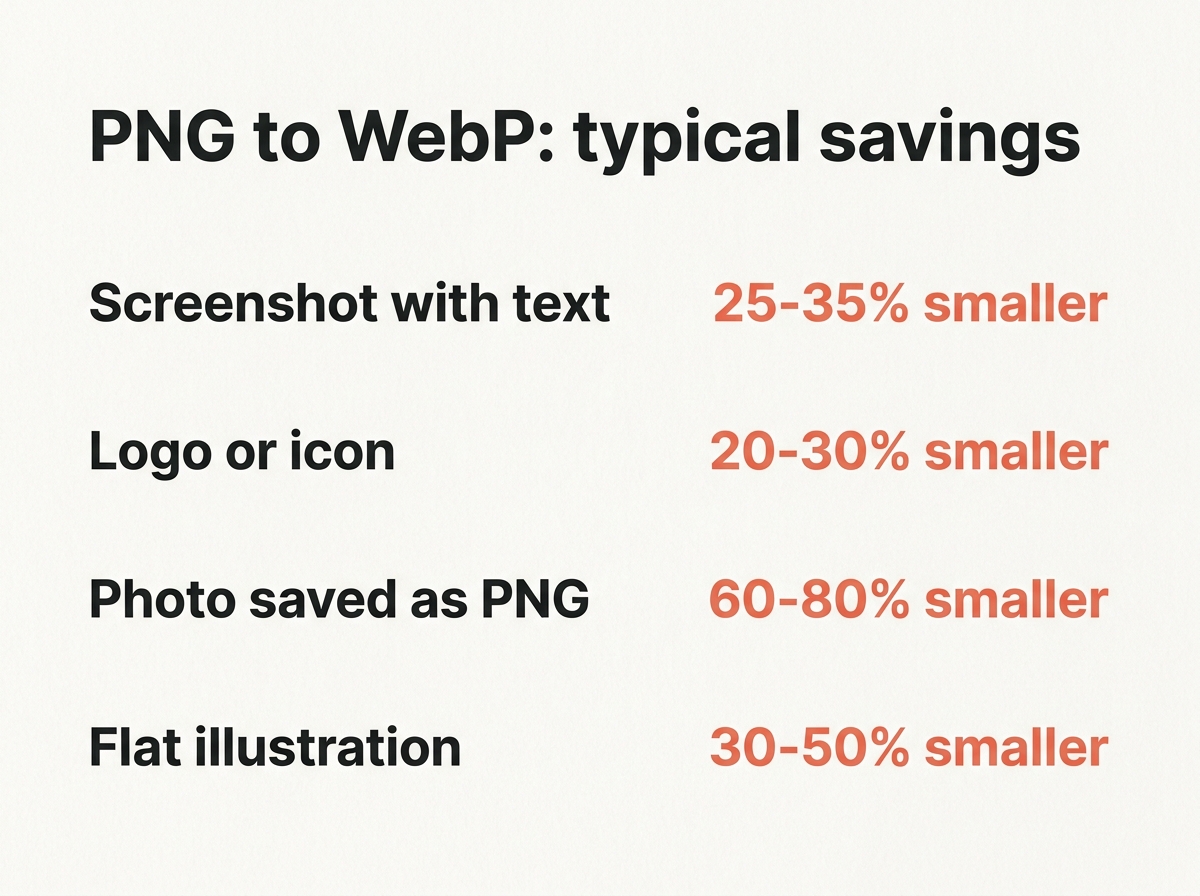
It depends on what the image contains, and the spread is wide.
| Image type | Typical saving | Mode to use |
|---|---|---|
| Screenshot with text | 25 to 35 percent | Lossless |
| Logo or icon | 20 to 30 percent | Lossless |
| Photograph saved as PNG | 60 to 80 percent | Lossy, quality 80 |
| Simple icon under 10 KB | little or none | Keep the PNG |
| Flat illustration | 30 to 50 percent | Lossless |
The photograph row is the one that surprises people. A photo stored as PNG is carrying an enormous amount of redundant data, and moving it to lossy WebP is less a conversion than a correction.
Converting several files at once
Doing this one image at a time in an editor is the slowest possible method. The Photos app and Paint on Windows both make you open and save each file by hand, with no way to select a whole folder.
Three faster options:
- A browser based converter that accepts multiple PNG images at once. This tool takes up to 20 at once and processes them all on your own device, so nothing is uploaded.
- A command line tool if you are comfortable with one. `cwebp` from Google’s own WebP package handles folders in a single command.
- A CMS plugin that converts on upload. If you run WordPress, this is the least work in the long run, because it keeps working for every future image.
Whichever you pick, convert one representative file first and look at it properly before you run the batch. Settings that look great on a photograph can ruin a screenshot, and a quick visual check costs seconds.
Should you keep the original PNG?
Yes, at least for anything you might need to edit again.
Converting is a one-way street in lossy mode. If you later want a different crop or a higher resolution, working from the WebP means compressing an already compressed file, and the damage accumulates. Keep the PNG in a folder you back up, and publish the WebP.
For lossless conversions this matters less, since the WebP holds the same pixels. It is still a sensible habit.
Which browsers support WebP?
Every current browser does. Chrome, Edge, Firefox, Opera and Safari all support WebP, and have done for several years. For images on the web that makes it a safe default.
The one caveat worth knowing concerns Safari on macOS, where support needs Safari 14 or later running on macOS Big Sur or newer. If your audience includes genuinely old machines, serve a JPEG or PNG fallback through the `picture` element. For everyone else, this is a settled question.
Frequently asked questions
Does converting PNG to WebP lose quality?
Not in lossless mode, where every pixel is preserved. In lossy mode yes, in the same way JPEG does, though at quality 90 and above the difference is extremely hard to see.
Is WebP always smaller than PNG?
Almost always, and often significantly so. Lossless WebP typically saves 20 to 30 percent while keeping every pixel. The rare exception is a very small, very simple image where the overhead of the format cancels the gain.
Can I convert without uploading my files?
Yes. Browser-based tools that use the Canvas or WebAssembly process the image on your own machine. Check the tool’s description, because many converters do upload to a server.
What quality setting should I use?
Quality 90 or higher for anything with text or sharp edges. Quality 80 for photographs. Below 70 you will start seeing artefacts in most images.
Should I convert PNG to WebP or AVIF?
WebP for general use on the web, because it is faster to encode and better supported. AVIF produces smaller files still, but encoding is slower and you should serve a fallback.
One thing worth doing first
Before you convert anything, check the dimensions. A 3000 pixel wide PNG displayed in an 800 pixel column wastes most of its size regardless of format.
Run it through the image resizer first, then convert. If the result is still larger than you want, the image compressor will take it the rest of the way. Resizing before converting compounds the saving, and it is the step people skip most often.