How to Remove EXIF Data from Photos Before Sharing

A seller posts a photo of a bike on a classifieds site. The picture looks harmless. Inside the file sit the exact GPS coordinates of the garage it was taken in, the time of day, and the phone model. Anyone who downloads the image and opens its properties can read all of it.
That hidden block is EXIF data, and every camera and phone writes it. Stripping it takes a few seconds once you know where the switch is. This guide covers every device, then explains which apps strip EXIF for you and which quietly preserve it.
What EXIF data actually contains
EXIF stands for Exchangeable Image File Format. It is a block of metadata stored inside JPG, HEIC, TIFF and many PNG and WebP files. A typical photo carries:
- the date and time the photo was taken, to the second
- the camera or phone model, lens and serial number
- exposure settings: aperture, shutter speed, ISO, focal length
- the GPS coordinates of the location, often accurate to a few meters
- the editing software used, and sometimes the original file name
- an embedded thumbnail, which on some devices still shows the uncropped original
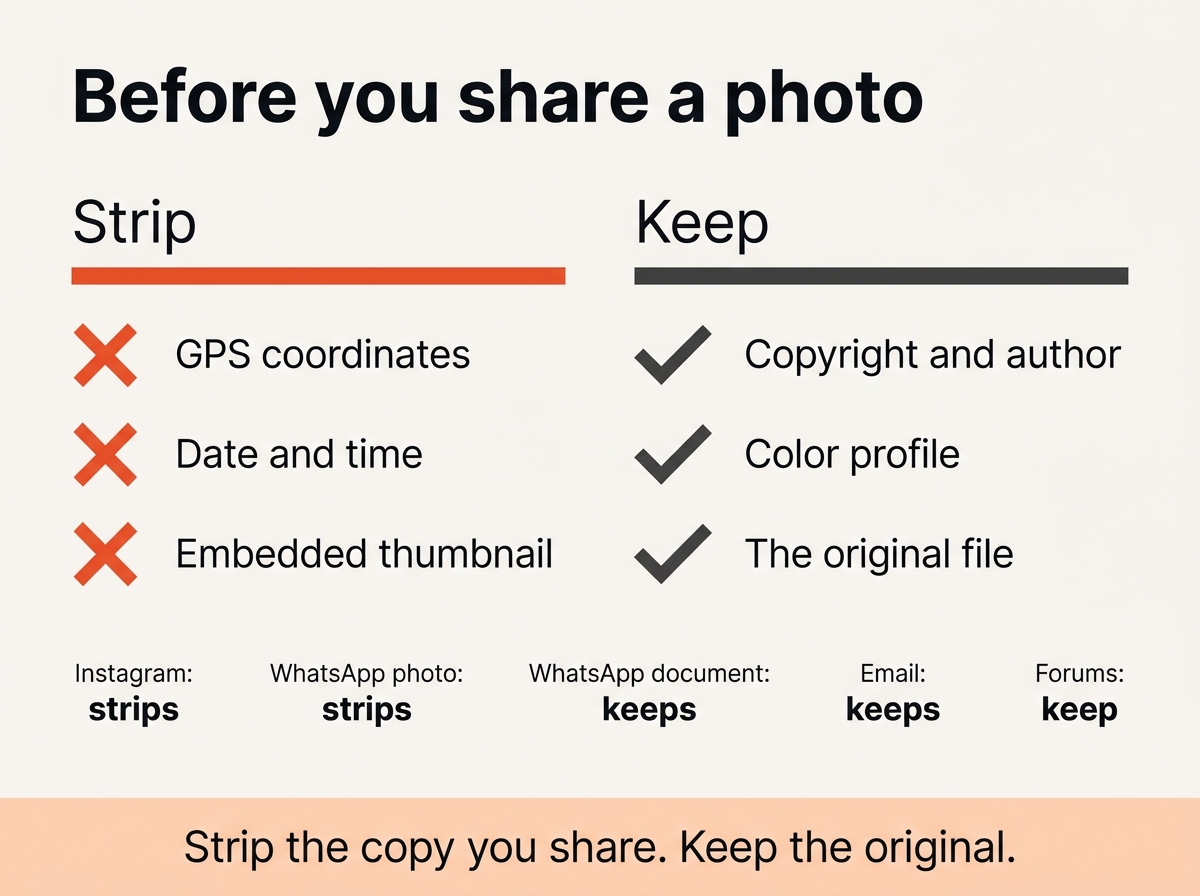
Most of this is useful to you and harmless. The GPS coordinates, the timestamps and the thumbnail are the privacy risks worth stripping before an image goes to strangers.
Do social networks strip metadata for me?
Mostly, but not everywhere. Facebook, Instagram, X and most dating apps strip all metadata when you upload. WhatsApp strips it when you send a picture as a photo, but preserves it when you send the same file as a document. Email keeps everything. Cloud share links, forums, classifieds sites, Slack, Discord and your own website pass the file through exactly as it is.
The safe assumption: unless a platform states that it strips metadata, it does not. You can find out once with the EXIF viewer by downloading a picture you posted and reading what survived.
In your browser, without quality loss
Most methods on this page re-save the image, which recompresses it. Our metadata remover works differently: it strips the EXIF, XMP and IPTC blocks from the file structure and leaves every pixel untouched.
- Drop up to 20 JPG, PNG or WebP files onto the tool.
- For each file it lists the information it found and stripped: GPS coordinates, camera data, thumbnails, comments.
- Download the cleaned files one by one or as a ZIP.
Nothing is uploaded. The processing happens on your device, which is the point when these are the pictures you did not want to share in the first place.
On iPhone
iOS lets you strip GPS from the shared copy while the original in your library keeps it.
- Open the photo in Photos and tap the Share button.
- Tap Options at the top of the share sheet.
- Switch off Location. To remove everything, switch off All Photos Data as well.
- Share as usual.
To strip GPS from the stored picture itself, open it, tap the info button, tap Adjust next to the map and select No Location.
On Android
The steps differ by manufacturer, but Google Photos works the same on every phone.
- Open the photo in Google Photos and swipe up, or tap the three dots.
- Next to the map, tap Edit and select Remove location.
- For a copy with no metadata at all, use the share sheet of the Files app and look for a Remove location or Strip metadata toggle; Samsung and Pixel phones both offer one.
If your phone has neither, the browser tool above works in Chrome on Android too.
On Windows
Windows has a built-in option that most people never find.
- Right-click the image and select Properties, then the Details tab.
- Click Remove Properties and Personal Information at the bottom.
- Select Create a copy with all possible properties removed and click OK.
Windows writes a cleaned copy next to the original. It handles JPG and TIFF reliably; for PNG and WebP it often strips nothing, so check the result.
On a Mac
Preview can strip GPS but not the rest.
- Open the photo in Preview, choose Tools, then Show Inspector.
- Open the GPS tab and click Remove Location Info.
For a complete strip on the Mac, either export from the Photos app with Location Information unticked in the export dialog, or use the browser tool.
With ExifTool, for hundreds of files
For anyone comfortable with a terminal, ExifTool is the reference tool for reading and writing image metadata. It runs on Windows, macOS and Linux and strips EXIF from your photos in bulk.
“`
exiftool -all= photo.jpg
exiftool -all= -overwrite_original *.jpg
“`
The first command strips all metadata and keeps a backup named `photo.jpg_original`. The second processes every JPG in the folder with the overwrite original option, so no backups pile up. To preserve the color profile and only remove GPS data, use `exiftool -gps:all= photo.jpg`.
Does stripping EXIF reduce image quality?
Depends on the method. Byte-level tools, including ExifTool and the browser remover above, leave the pixels alone, so quality is identical and the file only gets smaller. Methods that re-save the picture, such as exporting from an editor or taking a screenshot, recompress it and cost a little quality every time.
One side effect applies to both: orientation is stored in EXIF. An image that only displayed upright because of its rotation flag may appear rotated after stripping. Rotate it once and save.
When you should keep EXIF data
Not every picture should be stripped. Preserve the metadata when:
- You are the photographer and want credit. Copyright and author fields are the simplest provenance you have.
- You might need to prove an image is real. Camera data, capture time and matching GPS coordinates are exactly what reviewers look for, as our guide on spotting AI-generated images explains.
- The picture stays private. Metadata in your own library is a feature, not a privacy risk. Strip the copy you share, not the original.
Frequently asked questions
Can EXIF data reveal my home address?
If location services were on when the picture was taken, the GPS coordinates are usually accurate enough to identify the building. Any map app turns them into an address.
How do I check whether an image still has EXIF data?
Open it in the EXIF viewer, or on Windows look at the Details tab in Properties. If the camera model and date appear, the metadata is still there.
Does taking a screenshot strip EXIF data?
Yes, because a screenshot is a new image created by your device. It also throws away resolution and quality, so it is a last resort.
Do PDF and Word documents keep the metadata of embedded images?
Often yes. Strip the image before you place it in the document.
The short version
Strip the copy you share and keep the original. On a phone, use the share sheet options. On a computer, use the browser remover or ExifTool. And find out once what your favorite platform preserves, because the answer is not always what you expect.