How to Screenshot on iPhone: Buttons, Back Tap, Full Page
To take a screenshot on your iPhone, press two keys at the same time; which two depends on whether your model has Face ID or Touch ID. There are also three ways to do it without any keys, a full-page mode for web pages, and one place where you find every capture afterwards. Here is all of it.
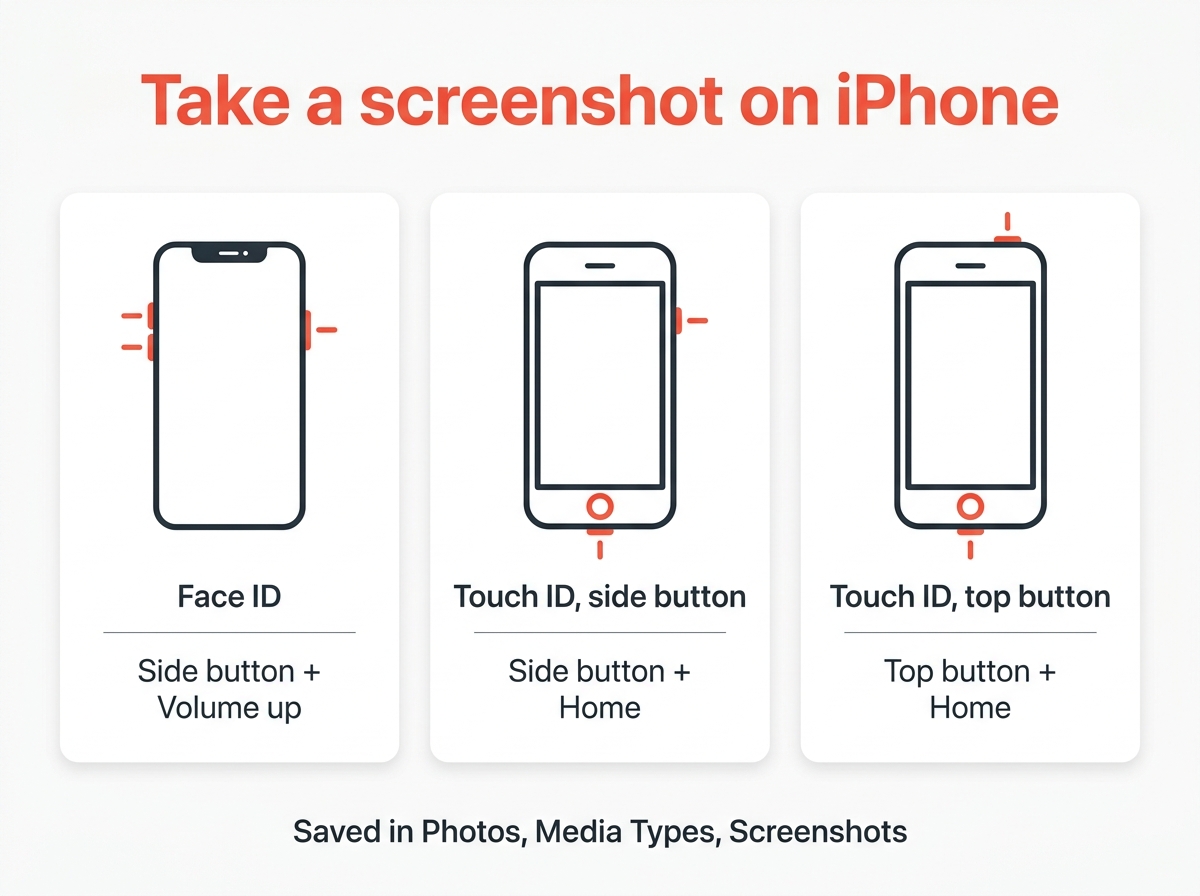
The button combination
| iPhone | Press together, then release | Models |
|---|---|---|
| With Face ID | Side + Volume up | iPhone X and every later model without Touch ID |
| With Touch ID, side key | Side + Home | iPhone 6, 7, 8 and SE (2nd and 3rd generation) |
| With Touch ID, top key | Top + Home | iPhone 5s, SE (1st generation) and older |
Press quickly and let go; holding too long brings up the power-off screen or Siri. The screen flashes white, the shutter sound plays if the phone is not muted, and a thumbnail of your screenshot appears in the bottom left corner. Apple’s support page on taking a screenshot lists the combinations for the iPhone and the iPad by model.
Tap the thumbnail to crop, mark up or share it straight away, or swipe it left to dismiss. Do nothing and it disappears after a few seconds; the capture is saved as it is.
Three ways without the keys
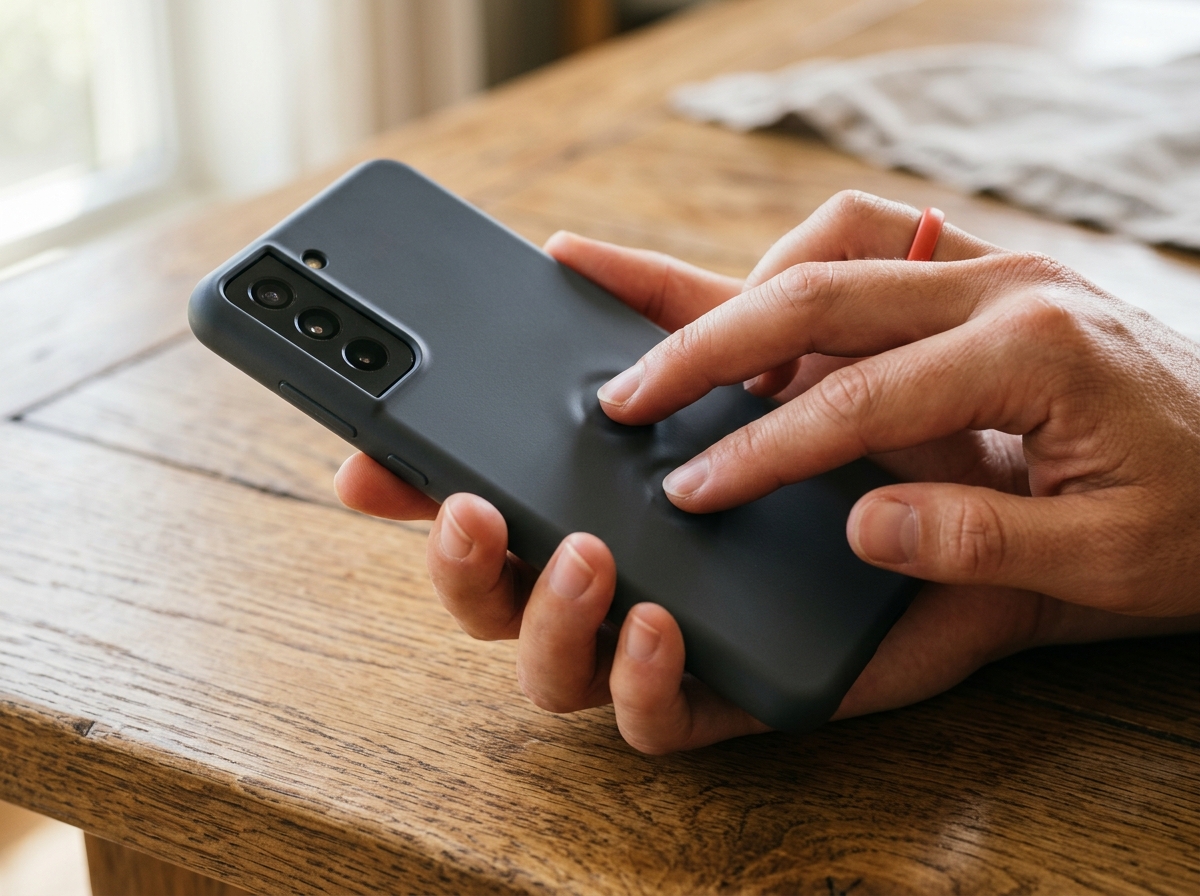
Back Tap. Go to Settings, Accessibility, Touch, Back Tap, and assign Screenshot to Double Tap. From then on, two taps on the back of your iPhone capture the screen. It works through most cases and is the fastest method once you have set it up; you need an iPhone 8 or later.
Siri. Say “Hey Siri, take a screenshot”. Siri captures what is behind its overlay, the easiest option while cooking or driving.
AssistiveTouch. Under Settings, Accessibility, Touch, turn on AssistiveTouch. A floating control appears; choose Device, More, Screenshot. This is the way to go if a physical key is broken.
How to screenshot a whole page
In Safari, and in apps with long content such as Mail or Notes, you can capture more than the visible screen. Make a normal capture, tap the thumbnail, select Full Page at the top of the editor, choose Done and Save PDF to Files. The result is a PDF, not an image; drag the slider on the right to trim it first. Other apps and devices handle this differently, see the guide to scrolling screenshots on any device.
Where do screenshots go on iPhone?
In the Photos app, scroll to Collections, choose Media Types and look for Screenshots. On older versions of iOS the album is under Albums. Each one is a PNG in the resolution of your display, often more than 2 MB. To share by mail or chat, the image compressor shrinks it to a few hundred kilobytes in the browser, and the image cropper removes the status bar. With iCloud Photos on, you will also have the same captures on your Mac and iPad.
Why can’t I take a screenshot?
Streaming apps such as Netflix block captures of protected video; the image comes out black. Some banking apps block them entirely. And if Screen Time restrictions are on, screenshots may be disabled under Content & Privacy Restrictions. If none of this applies, you are probably pressing one key after the other; try again, both at the same time, or set up Back Tap.
Quick answers
How do you screenshot on an iPhone without the Home button? Press the side key and volume up together, then let go.
How do I take a screenshot by tapping the back? Settings, Accessibility, Touch, Back Tap, and assign Screenshot to Double Tap.
Where do screenshots go? The Screenshots album in the Photos app, under Media Types.
How do I capture a whole page? Tap the thumbnail, choose Full Page and save it as a PDF.
The shortcuts for Android, Windows, Mac and iPad are in the guide to taking a screenshot on any device.