How to Screenshot on Chromebook: Every Method
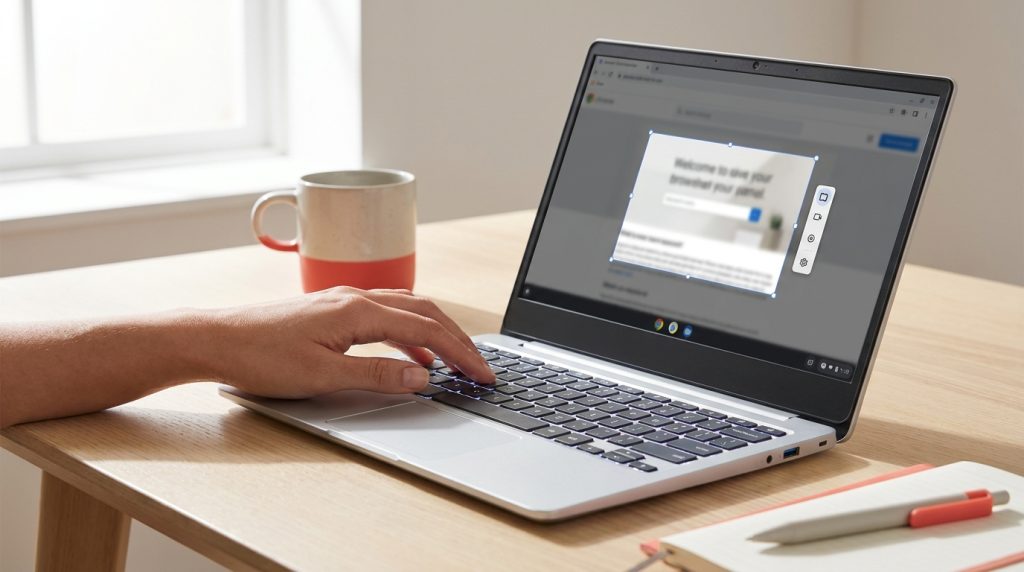
A Chromebook has no Print Screen key. The key that does the job sits in the top row and looks like a rectangle with two lines beside it. Google calls it the Show windows key. Every screenshot shortcut in ChromeOS is built around it. Here is how to take a screenshot of the whole screen, part of it or one window, what to do on an external keyboard or in tablet mode, plus where the file is saved afterwards.
The three shortcuts
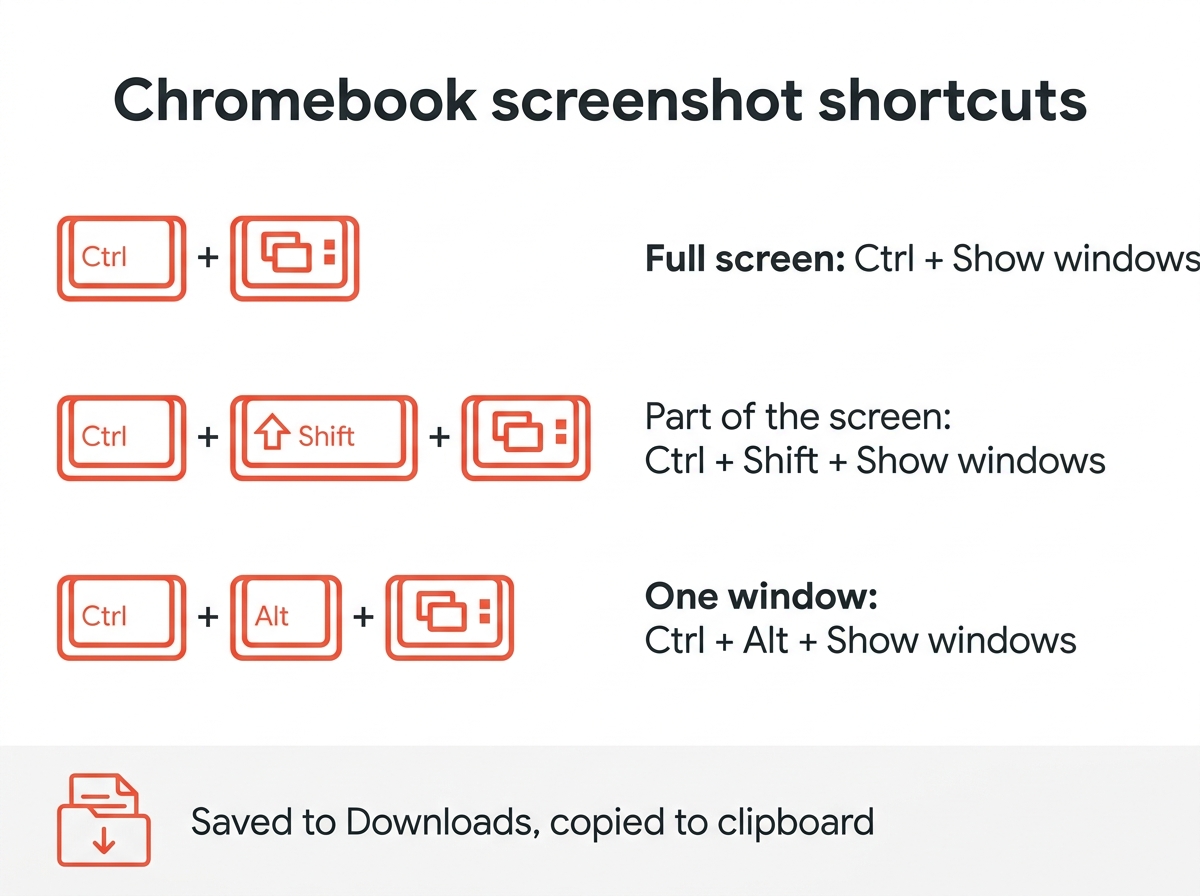
| What you want | Press | What happens |
|---|---|---|
| Full screen | Ctrl + Show windows | The screenshot is taken immediately |
| Part of the screen | Ctrl + Shift + Show windows | A crosshair appears; drag over the area you want |
| One window | Ctrl + Alt + Show windows | The cursor becomes a camera icon; click the window |
On newer models there is also a dedicated Screenshot key with a camera symbol. Pressing it opens the same capture toolbar as Ctrl + Shift + Show windows.
Full screen
Press Ctrl together with the Show windows key. ChromeOS captures everything on screen, shows a preview in the bottom right corner and copies the image to your clipboard at the same time. You can paste it straight into a document or a chat without opening the file.
Partial screenshot
Press Ctrl + Shift + Show windows. The screen dims and a toolbar appears along the bottom. Drag the crosshair over the area you want. Before you release, you can move the selection by dragging its centre or resize it by dragging a corner. Click the capture button in the middle of the selection, or press Enter, to take the screenshot.
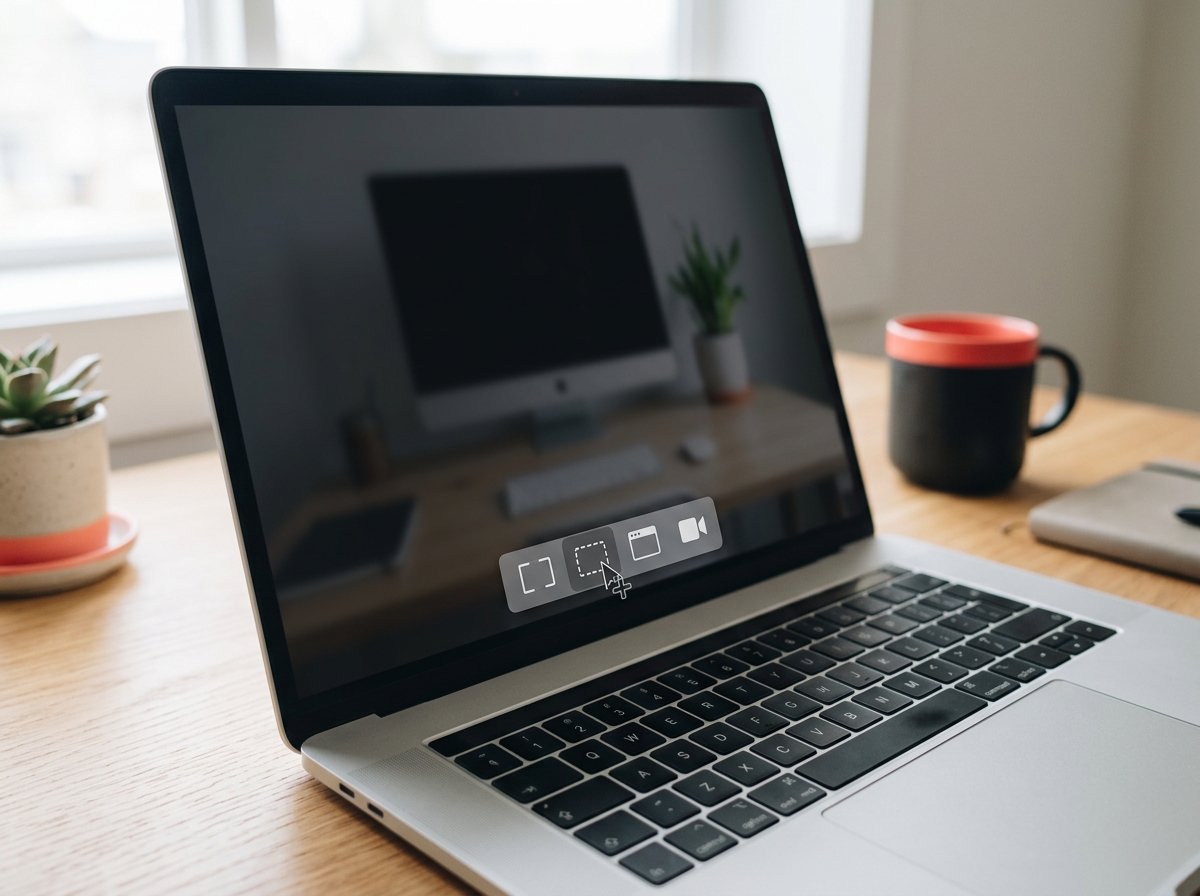
The same toolbar has three buttons for the capture type. The first option captures the full screen, the second a partial area, the third a window, so you can switch modes without remembering the other shortcuts.
A single window
Press Ctrl + Alt + Show windows, then click the window you want. Everything else on the screen is left out. This is the quickest way to capture a browser window without the shelf or the clock.
No Show windows key? External keyboards and tablet mode
If you connect a standard Windows keyboard, there is no Show windows key. ChromeOS maps it to F5, so the shortcuts become Ctrl + F5 for the full screen, Ctrl + Shift + F5 for a partial screenshot and Ctrl + Alt + F5 for a window.
On a convertible folded into tablet mode, press the Power button together with Volume down, exactly as on an Android phone. If your device has a stylus, the pen menu in the shelf also offers a capture option that lets you draw the area with the pen.
There is one more route that needs no keys at all. Click the clock in the bottom right corner to open the Quick Settings panel, then select the Screen capture option. The toolbar appears so you choose the mode from there.
Where do screenshots go on a Chromebook?
By default, every screenshot is saved as a PNG file in the Downloads folder, which you find in the Files app. Right after the capture, a thumbnail appears in the holding space next to the clock, so you can drag it directly into an email or a chat. The notification that pops up offers Edit, Copy to clipboard or Delete.
To change the folder, open the capture toolbar with Ctrl + Shift + Show windows, click the gear icon and pick a different location under Save to. Google Drive works as a destination too, which keeps your screenshots available on other devices. Google documents the full list of shortcuts in its help article on screenshots and screen recording.
How to record your screen
The same toolbar handles video. Press Ctrl + Shift + Show windows, click the video camera icon on the left side of the toolbar, then choose full screen, partial or window. Click Record. A red dot appears in the shelf while the recording runs; click it to stop, or press Search + Shift + X. The recording is saved as a WebM file in the same folder as your screenshots. The gear icon has an option to switch the microphone on, so you can narrate a short tutorial.
Edit the screenshot before you share it
Click the thumbnail after the capture and ChromeOS opens the image in the Gallery app, where you can crop, rotate or draw annotations. If you want more control over the final size, the image cropper trims exactly to a pixel size in your browser, and the image compressor shrinks a large PNG before it goes into an email.
For a web page that is longer than the screen, a normal capture only shows the visible part. The guide on how to take a scrolling screenshot covers the Chrome developer tools trick that captures the entire page.
Quick answers
How do you screenshot on a Chromebook without the Show windows key? Use Ctrl + F5 on an external keyboard, press Power + Volume down in tablet mode, or open Screen capture from the Quick Settings panel next to the clock.
Where do screenshots go on a Chromebook? Into the Downloads folder in the Files app unless you change the location in the capture toolbar settings. A copy also goes to the clipboard.
How do I take a screenshot of part of the screen? Press Ctrl + Shift + Show windows and drag over the area you want, then click the capture button or press Enter.
Why do the shortcuts do nothing at school or work? Managed devices sometimes block screenshots through administrator policy. If the shortcuts do nothing, that policy is the likely reason, and only the administrator can change it.
The guide to taking a screenshot on any device has the matching shortcuts for Windows, Mac, iPhone or Android.