WebP to JPG: Convert on Windows, Mac or in the Browser
Most WebP images that annoy people are photos saved from a website: Chrome delivers the image in Google’s format, and the photo editor, the print shop or the upload form you need it in expects JPG. Converting WebP images to JPG takes a few seconds, and you can do it with tools you already have. This guide covers five options, from a WebP to JPG converter that keeps your images on your own computer to a command line for a hundred files, plus the honest answer on image quality.
Why convert WebP to JPG at all?
WebP compression produces files around 25 to 35 percent smaller than JPG at the same visible quality, which is why websites serve the image format and all modern browsers display it. Outside the browser the compatibility is thinner. Older image editing software, many content management systems, print services, Microsoft Office on older versions and most upload forms still want JPG files or PNG. The JPG format is the right target for photos; for graphics with transparency, you can use WebP to PNG instead, because JPG cannot store transparent areas.
One thing that never works: renaming the file from .webp to .jpg. The file format extension changes, the pixel data does not, and most programs will refuse to open the result. A converter has to decode the WebP and re-encode it as JPG; that process is what every method below does.
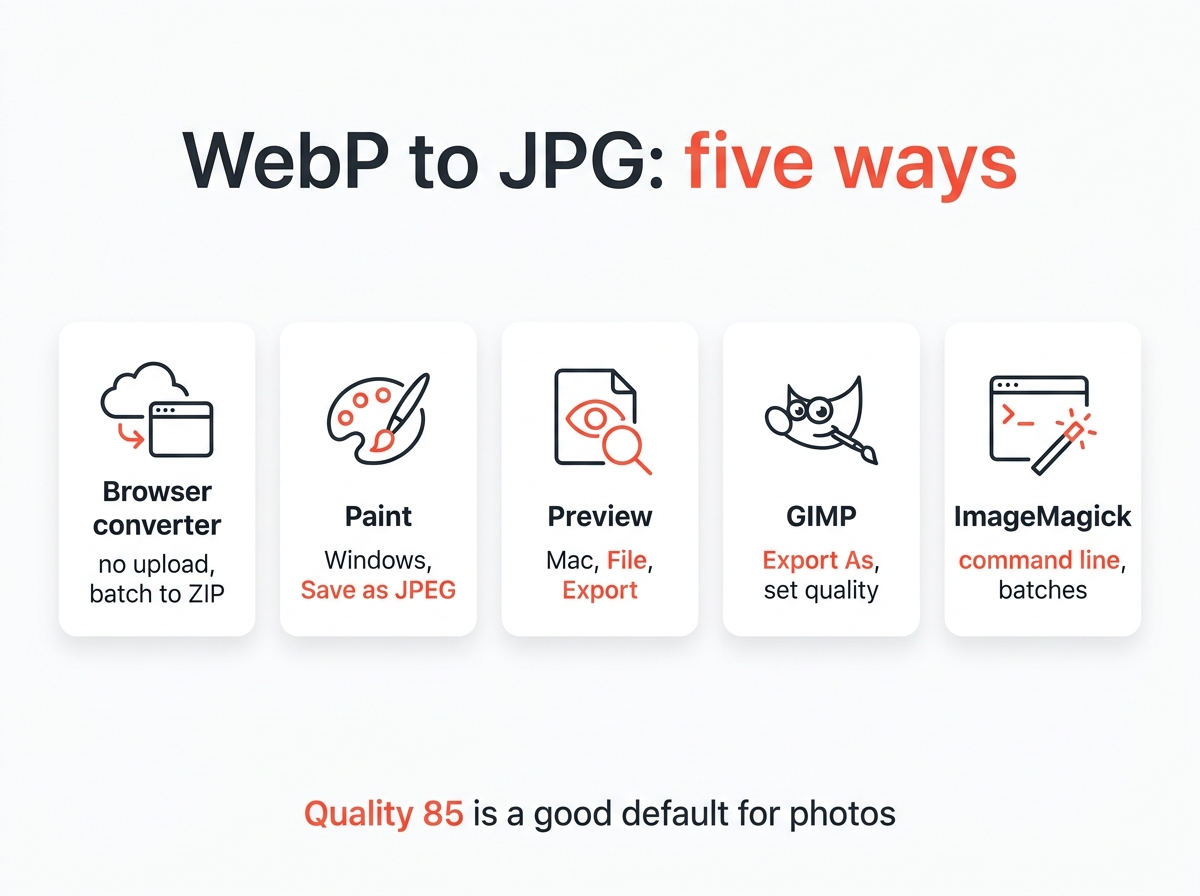
1. In your browser, without uploading
The image converter on this site is a WebP to JPG converter that runs directly in your browser. Drop the files in, pick JPG, set the quality and click the Convert button. Nothing is uploaded, which matters for private photos and client work, and you can convert several images at once and download them as a ZIP. The quality slider lets you choose between a smaller file and a cleaner image; 85 is a good default for photos.
Online tools that upload your images, such as Convertio, Ezgif or CloudConvert, are free up to a size limit and offer batch options too. Every upload leaves a copy of the image on a server you do not control, so keep confidential files local.
2. Windows: Paint
Windows 10 and 11 open WebP in Paint and the Photos app without extra software.
- Right-click the WebP file, choose Open with, then Paint.
- Click File, Save as, and pick JPEG picture.
- Name the file and save.
Paint uses a fixed JPG compression level, which is fine for sharing and a little heavy for the web. If you need control over the size, you can use the browser tool instead.
3. Mac: Preview
macOS supports WebP in Preview since Big Sur.
- Open the file in Preview.
- Choose File, then Export.
- Select JPEG from the Format menu, move the Quality slider, and click Save.
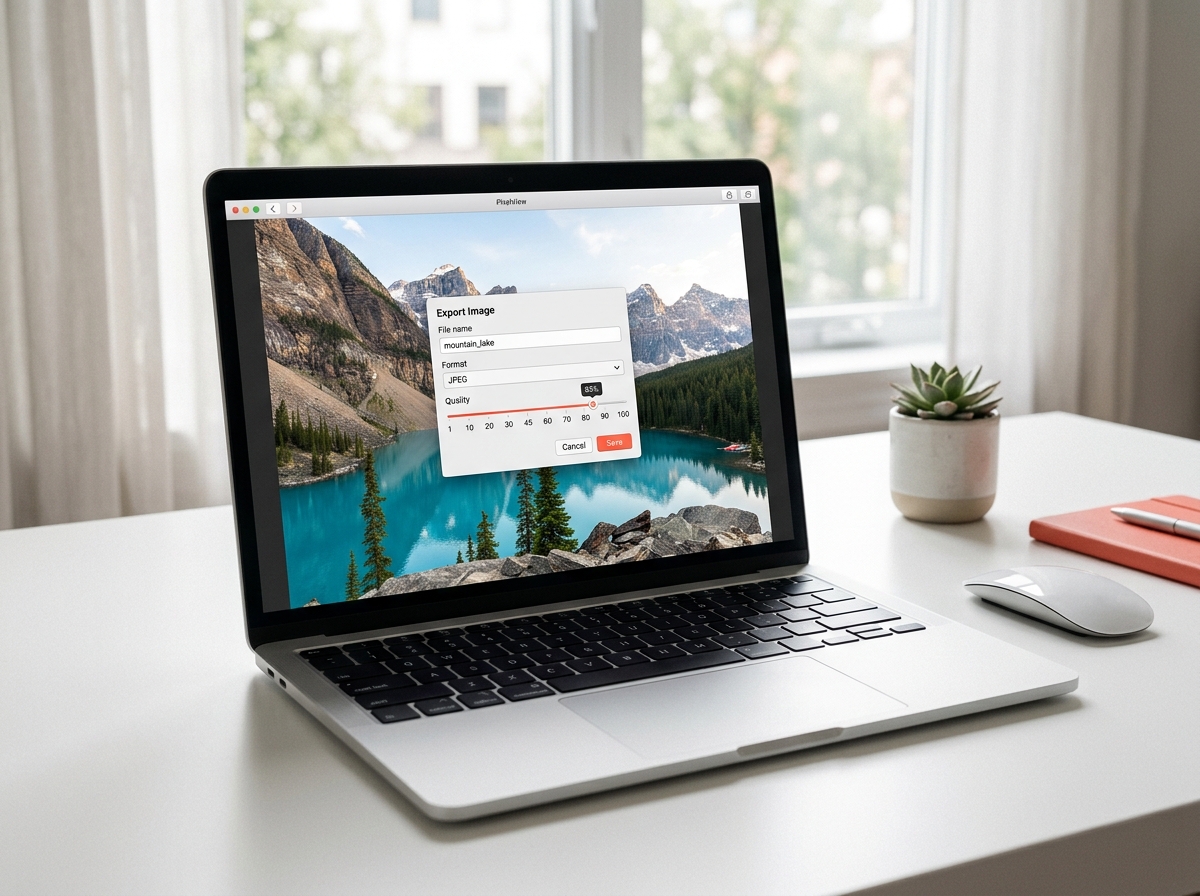
For many files, open them all in one Preview window, select every thumbnail in the sidebar, then use File, Export Selected Images. Preview can convert any number of images in one go this way.
4. GIMP and other editors
GIMP, Photoshop, Affinity Photo and IrfanView all open WebP images in their current versions. In GIMP, choose File, Export As, type a name ending in .jpg and set the quality in the dialog that follows. IrfanView on Windows has a batch window under File, Batch Conversion, which is the quickest way to convert WebP images from a whole folder using a graphical tool. Any of these editors may also let you resize or crop before saving.
5. Command line for batches
Google’s libwebp tools decode to PNG only, so for JPG the common route is ImageMagick:
magick photo.webp -quality 85 photo.jpgEvery WebP file in a folder on Mac or Linux:
for f in *.webp; do magick "$f" -quality 85 "${f%.webp}.jpg"; doneWhich browsers and tools support the image format natively is listed in Google’s WebP FAQ; the list explains why a file that opens fine in Chrome fails in an older desktop program, and why compatibility is still the main reason people convert.
Does converting WebP to JPG lose quality?
A little, and it is worth understanding why. Both formats use lossy compression for photos. The WebP already discarded some detail when it was created, and the JPG encoder discards a little more during the conversion. At quality 85 or higher the difference in image quality is invisible at normal viewing size. Converting back and forth repeatedly is what degrades an image, so convert once and keep the JPG files as your working copies.
File size moves the other way. A 180 KB WebP photo typically becomes a 250 to 300 KB JPG at the same visible quality. If the file has to fit a limit, run it through the image compressor afterwards, or use the guide on compressing an image to 200 KB.
How do I stop Chrome from saving images as WebP?
You cannot, in a clean way. Chrome saves what the website sends, and many sites send WebP only to browsers that support it. Workarounds like editing the image URL or installing extensions that request the JPG version work on some sites and break on others. Converting the file after download is quicker and always works. The explainer on what a WebP file is covers why websites switched in the first place.
Quick answers
How do I convert WebP to JPG on Windows? Open the file in Paint and save as JPEG, or use the browser converter if you want to set the quality.
How do I convert WebP to JPG on a Mac? Open it in Preview, choose File, Export, pick JPEG and save.
Can I just rename a WebP file to JPG? No. The data stays WebP and most programs will not open it.
How do I convert multiple WebP files at once? Drop them all into the browser converter for a ZIP, use IrfanView’s batch window on Windows, or ImageMagick in a loop. All three options handle hundreds of images.