How to Screenshot on an HP Laptop: Every Method
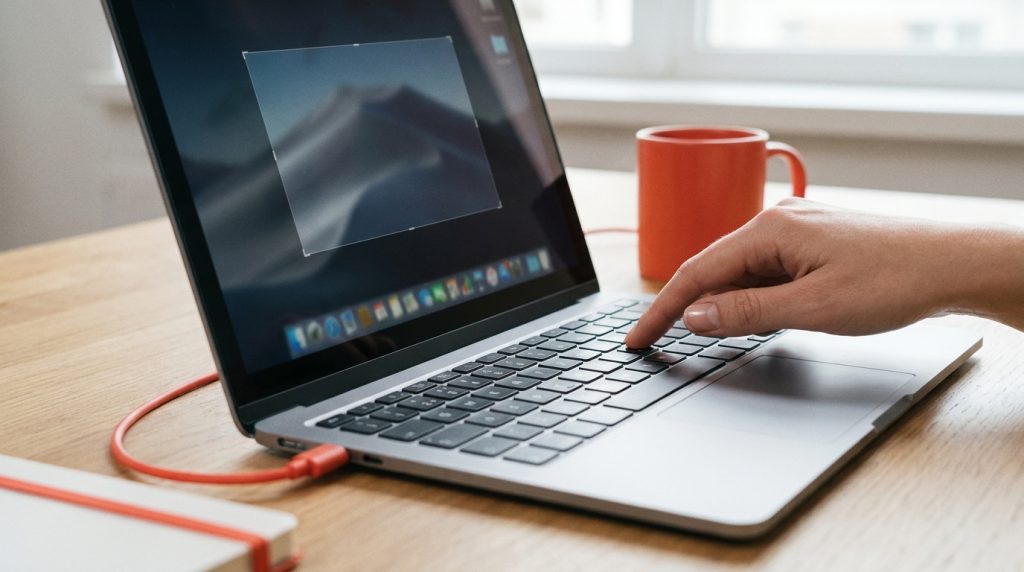
HP laptops run Windows, so the screenshot shortcuts are the Windows ones. What trips people up is the keyboard: on many HP models the Print Screen key is small, shares a key with Insert or Delete, and only works together with the Fn key. This guide shows where the key is on HP Pavilion, Envy, Spectre, OMEN, Victus and EliteBook keyboards, the four shortcuts that cover every situation, where the screenshot is saved, and what to do on an HP Chromebook.
Find the Print Screen key on your HP keyboard
Look at the top right of the keyboard. On most HP laptops the key is labelled “prt sc”, “PrtSc” or “PrtScn” and sits in the row with the function keys, usually between F12 and Delete, or above the Backspace key. On compact models such as the Pavilion 14 or Spectre x360, the label is printed small below another function, which means you have to hold Fn to reach it.
A quick test: press the key alone, open Paint and press Ctrl + V. If an image of your screen appears, the key works on its own. If nothing appears, hold Fn and press it again. HP’s own guide to screenshots on HP laptops and desktops covers the same methods for its current models.

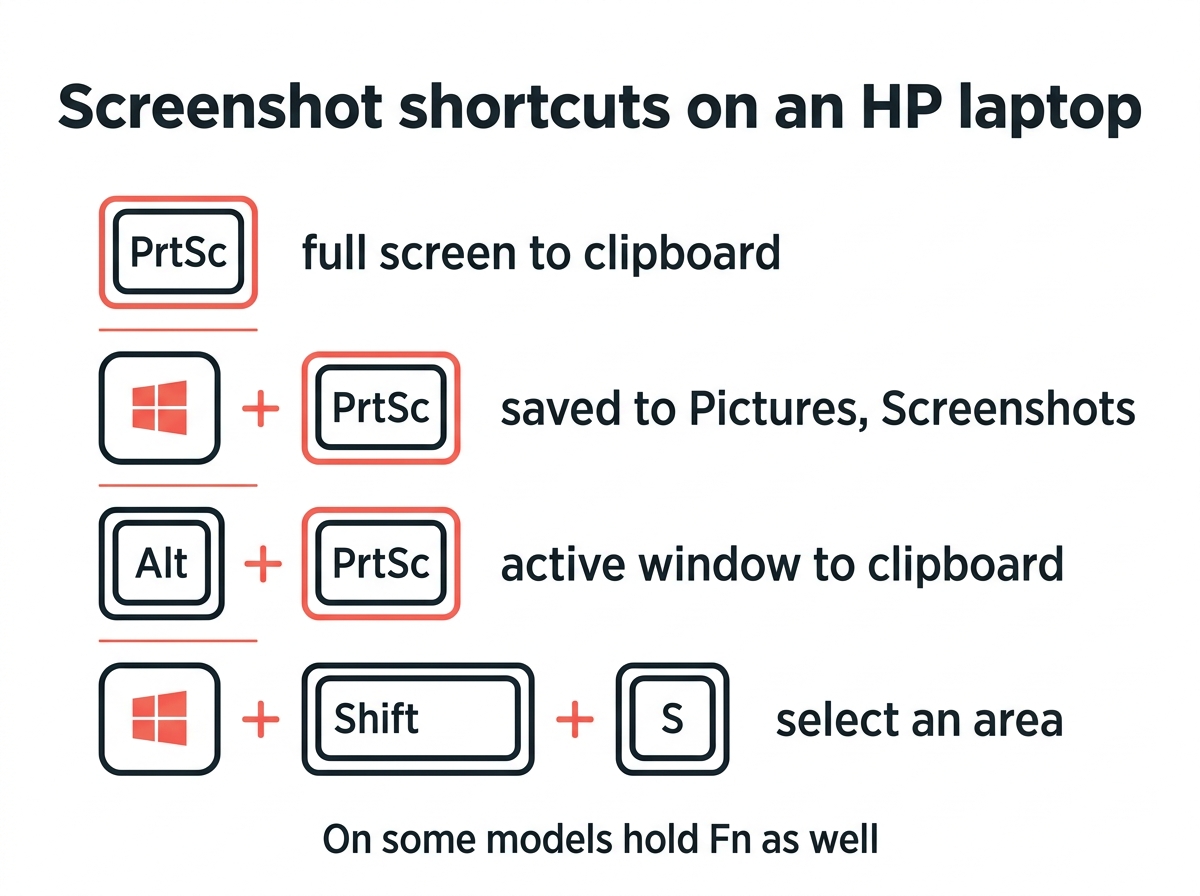
The four shortcuts
| What you want | Press | Where it goes |
|---|---|---|
| Whole screen, quick copy | PrtSc (or Fn + PrtSc) | Clipboard, paste with Ctrl + V |
| Whole screen, saved as a file | Windows + PrtSc (or Windows + Fn + PrtSc) | Pictures, Screenshots folder |
| Active window only | Alt + PrtSc (or Alt + Fn + PrtSc) | Clipboard |
| Part of the screen | Windows + Shift + S | Clipboard, plus Snipping Tool notification |
The screen dims briefly when Windows + PrtSc saves a file. If it does not dim, the shortcut did not register, and the Fn variant is the first thing to try.
Windows + Shift + S and the Snipping Tool
Windows + Shift + S is the shortcut most people end up using. The screen dims and a small toolbar offers rectangle, freeform, window and full-screen capture. Drag over the area and the capture lands on your clipboard; a notification lets you open it in the Snipping Tool to crop, annotate and save. Microsoft documents the tool and its settings in its Snipping Tool support article.
If you prefer every snip saved automatically, open the Snipping Tool from the Start menu, click the three dots, choose Settings and turn on Automatically save screenshots. The tool also has a delay timer, useful for capturing menus that close when you press a key, and a screen recording mode.
HP-specific extras
- OMEN and Victus gaming laptops ship with the OMEN Gaming Hub, which includes its own capture shortcuts for games. The Windows Game Bar works too: Windows + Alt + PrtSc saves a screenshot of the active game to Videos, Captures.
- Fn Lock. If you constantly need Fn for Print Screen, press Fn + Shift (on some models Fn + Esc) to toggle Fn Lock, so the function row acts as F keys and PrtSc works alone. The lock key has a small LED on many HP keyboards.
- No PrtSc key at all. Some HP keyboards drop the key entirely. Use Windows + Shift + S, or remap another key through Settings, Accessibility, Keyboard, where you can also set Print Screen to open the Snipping Tool.
- HP Chromebooks do not run Windows. Press Ctrl + Show windows (the key with a rectangle and two lines) for the full screen, or Ctrl + Shift + Show windows for part of it. The guide on how to screenshot on a Chromebook has the full list.
Where do screenshots go on an HP laptop?
Windows + PrtSc saves a PNG file to This PC, Pictures, Screenshots, numbered in order. Plain PrtSc, Alt + PrtSc and Windows + Shift + S copy to the clipboard only; paste into Paint, Word or a chat, or click the Snipping Tool notification to save. OneDrive can be set to save screenshots automatically as well, under its Settings, Sync and backup tab, which puts every capture in OneDrive, Pictures, Screenshots.
Before you send a screenshot, trim the taskbar and anything private with the image cropper, which runs in the browser without uploading the file. For a web page that is longer than the screen, a normal capture only shows the visible part; the guide to scrolling screenshots covers the whole page.
Why is Print Screen not working on my HP laptop?
In order of likelihood: the key needs Fn; Fn Lock is on and swaps the behaviour; the Print Screen key has been assigned to open the Snipping Tool in Settings, Accessibility, Keyboard, so it opens the toolbar instead of copying; a background app such as OneDrive, Dropbox or a game overlay has claimed the key; or the keyboard driver needs the update from HP Support Assistant. Windows + Shift + S works regardless of all of these, which makes it the reliable fallback.
Quick answers
Where is the Print Screen button on an HP laptop? Top right of the keyboard, labelled prt sc, usually near Delete or above Backspace. On compact models it is a secondary function that needs Fn.
How do I screenshot on an HP laptop without the Print Screen key? Press Windows + Shift + S and drag over the area, or open the Snipping Tool from the Start menu.
Where do screenshots go on an HP laptop? Windows + PrtSc saves to Pictures, Screenshots. Other shortcuts copy to the clipboard.
How do I take a screenshot of one window? Click the window, then press Alt + PrtSc, adding Fn if your keyboard needs it.
The complete reference for all Windows methods, including delayed captures and Game Bar, is in the guide on how to screenshot on Windows.